Main Page
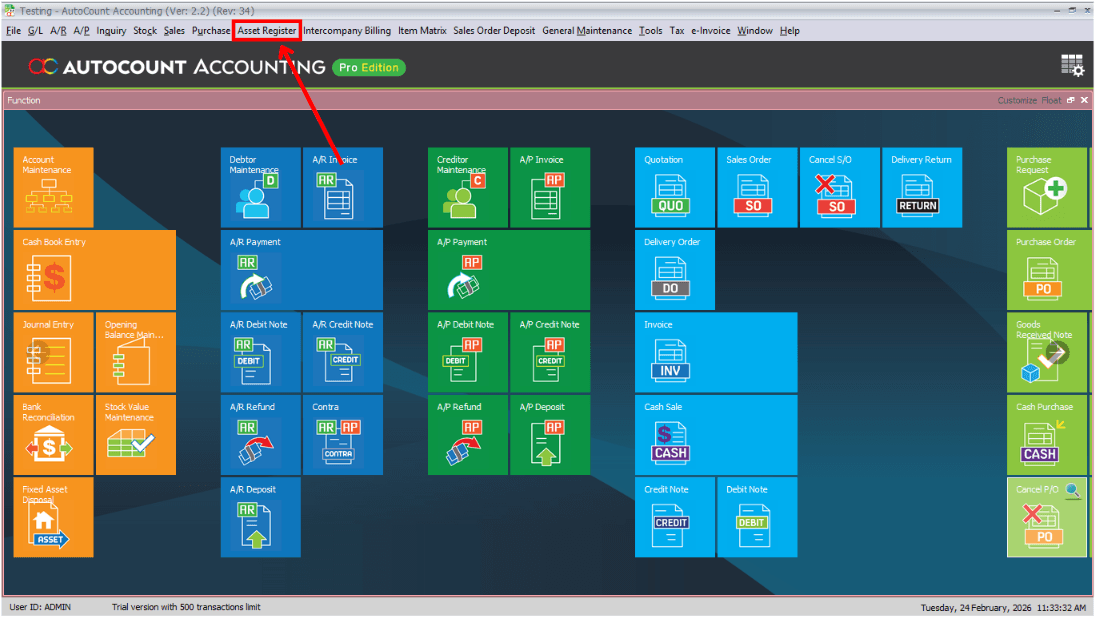
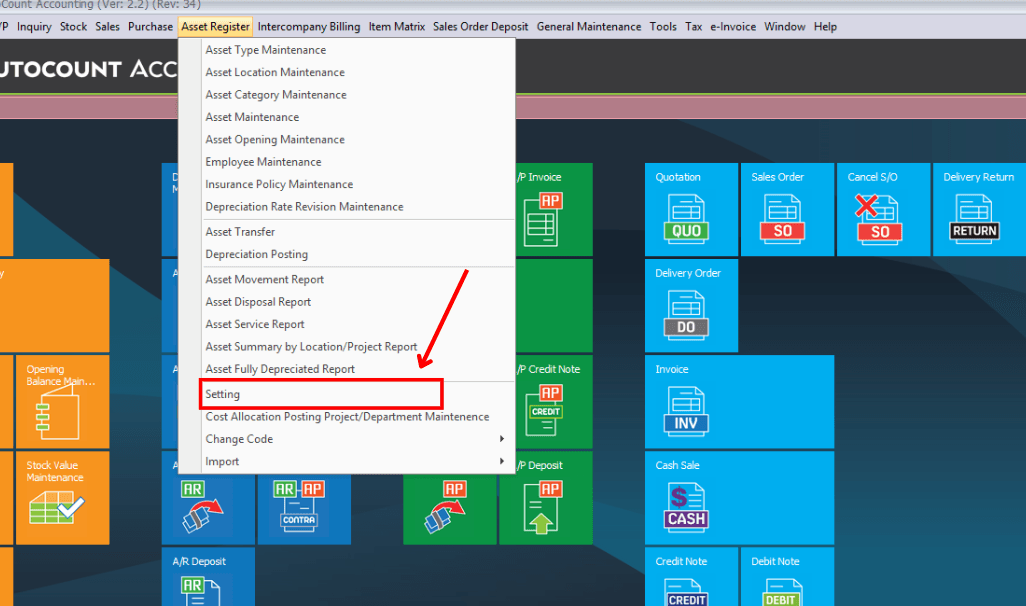
Main Page → Asset Register
After installing the plug-in and restarting Autocount, access the Fixed Asset module from the plug-ins menu.

4 Core Functions
After installing the plug-in and restarting Autocount, access the Fixed Asset module from the plug-ins menu.
Configure asset categories, depreciation methods, and default GL mapping before adding assets.
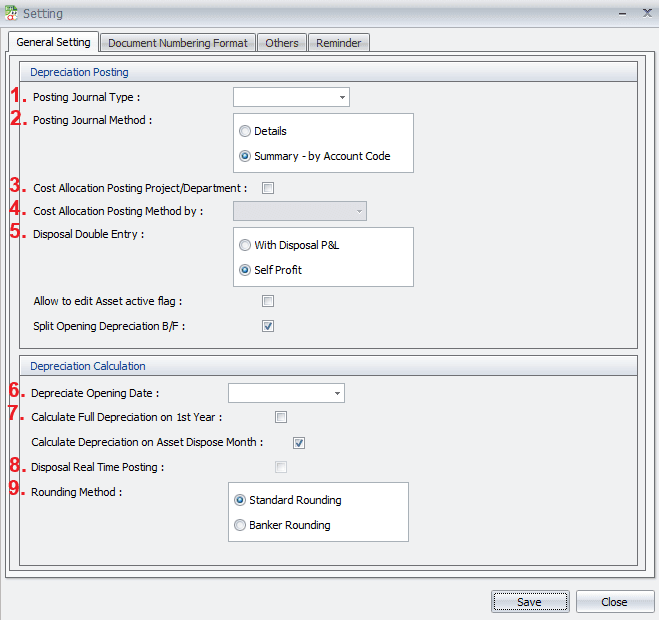
Select which journal type will be used when the system generates accounting entries for depreciation or disposal. This determines how the entry appears in the General Ledger.
Choose how journal entries are posted:
Detail posting provides clearer audit trails. Summary posting keeps the ledger cleaner.
If enabled, the system allows depreciation costs to be allocated to a specific project or department. If not enabled, even if you select project or department in other settings, the system will ignore the allocation. This setting also affects the Cost Allocation setting in Asset Maintenance.
Choose whether depreciation cost is allocated by:
Useful for companies that track expenses by cost centers or projects.
Determines how accounting entries are handled when disposing of an asset. There are different double-entry treatments depending on whether you use the Disposal Profit & Loss account method, or Self Profit method. This affects how gains or losses from disposal are recorded in financial statements.
Defines the starting date from which system depreciation calculations begin. All depreciation calculations will follow this configured start date.
If enabled, the system calculates a full year of depreciation in the first year, regardless of the purchase month.
Example: If an asset is purchased in October, the system will still calculate a full year's depreciation for that year. During the first year, the annual depreciation will be distributed across the months it is in service. This option is often used to comply with specific tax or accounting policies.
Uses the “round half to even” method.
Examples:
This method reduces cumulative rounding bias over time. Also known as unbiased rounding or Gaussian rounding.
Uses the normal rounding method where 0.5 is always rounded up.
Example: 22.5 becomes 23
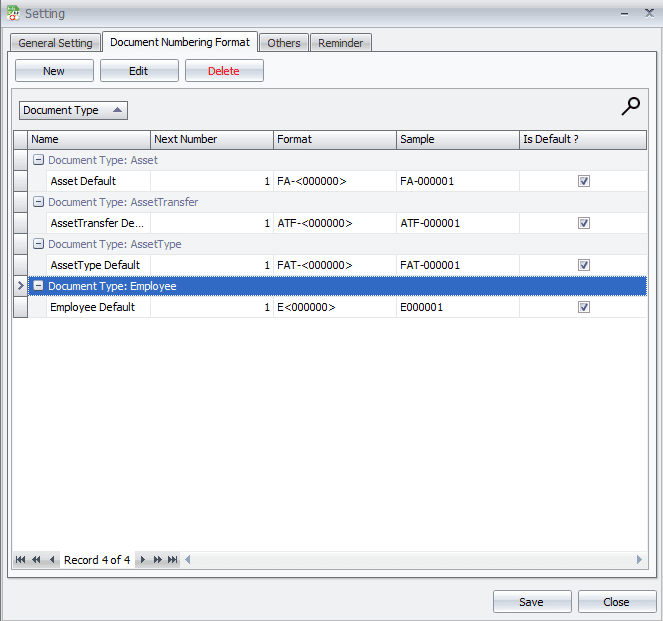
Define the formula for document numbering.
Example: FA-2026-0001
This controls how asset-related documents are formatted.
Defines the next running number in the document sequence. The system will continue numbering from this value.
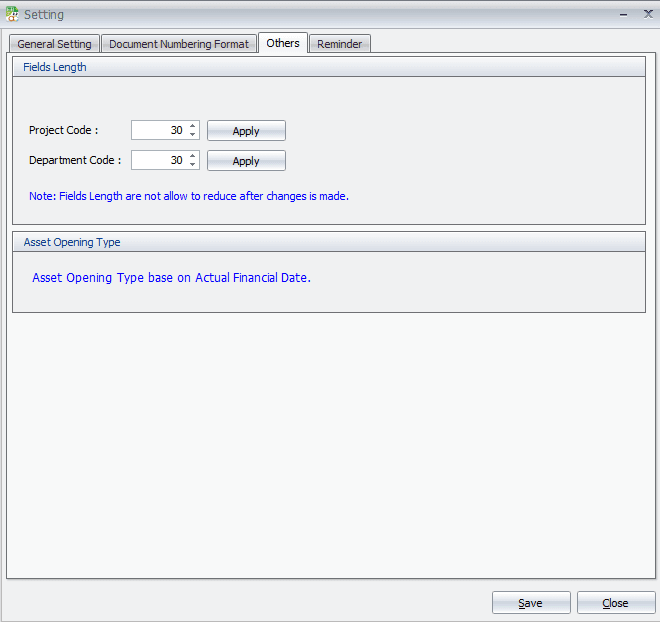
This setting allows you to define the maximum character length for:
By default, the system sets the field length to 15 characters. If your company requires longer codes, you can select a character length greater than 15 and click “Apply” to update the setting.
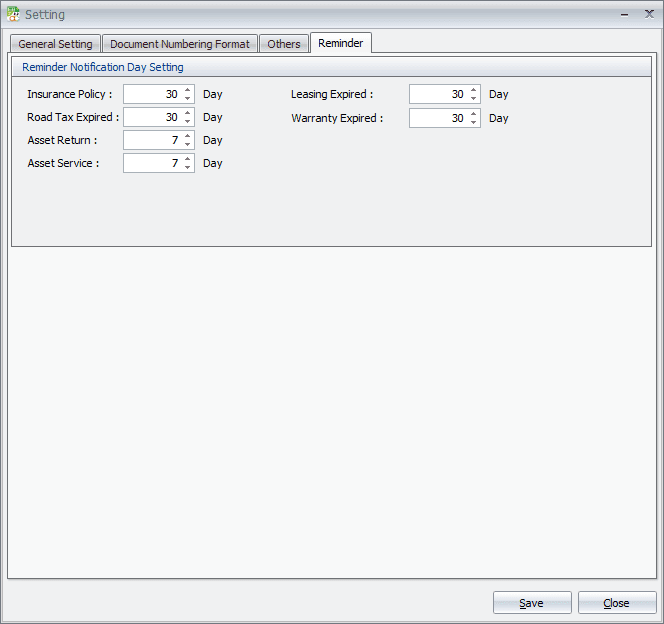
The system will automatically send alerts based on the return date in Asset Transfer and the next service date in Asset Maintenance, helping you stay on time and manage assets more efficiently.
Asset Type is used for maintaining the Type of Asset, the depreciation method, posting method and depreciation account codes.
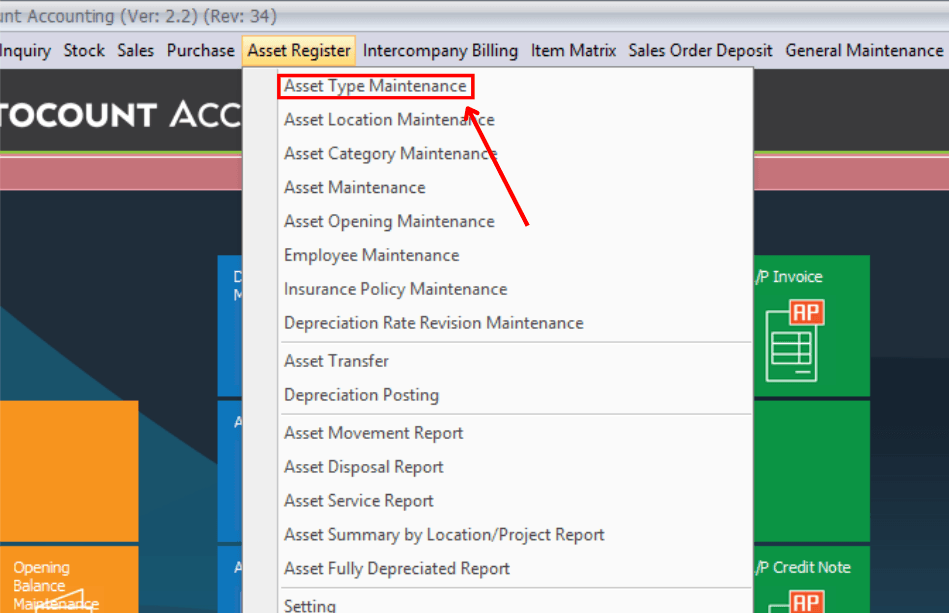
Click the "New" button.
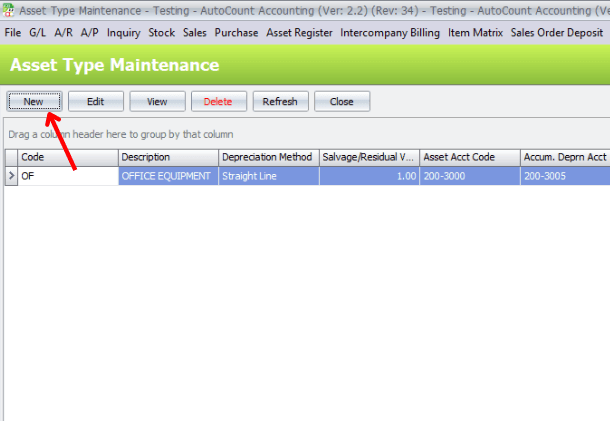
Asset Type Maintenance is used to define the settings and accounting rules for each fixed asset category.
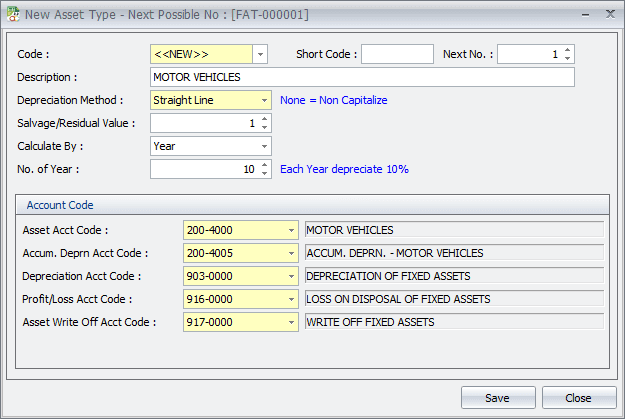
Asset type code automatically generated by the system.
Used to describe the fixed asset type.
There are three depreciation methods available:
Depreciates the asset evenly over its useful life.
Formula: Annual Depreciation = (Asset Cost − Residual Value) ÷ Useful Life (Years)
Applies higher depreciation in the earlier years and gradually reduces over time.
Formula: Annual Depreciation = Depreciation Rate × Beginning Book Value of the Year
Select this if the asset should not be depreciated (not capitalized).
The estimated value of the asset after depreciation. Minimum value is RM1.
You can calculate depreciation by:
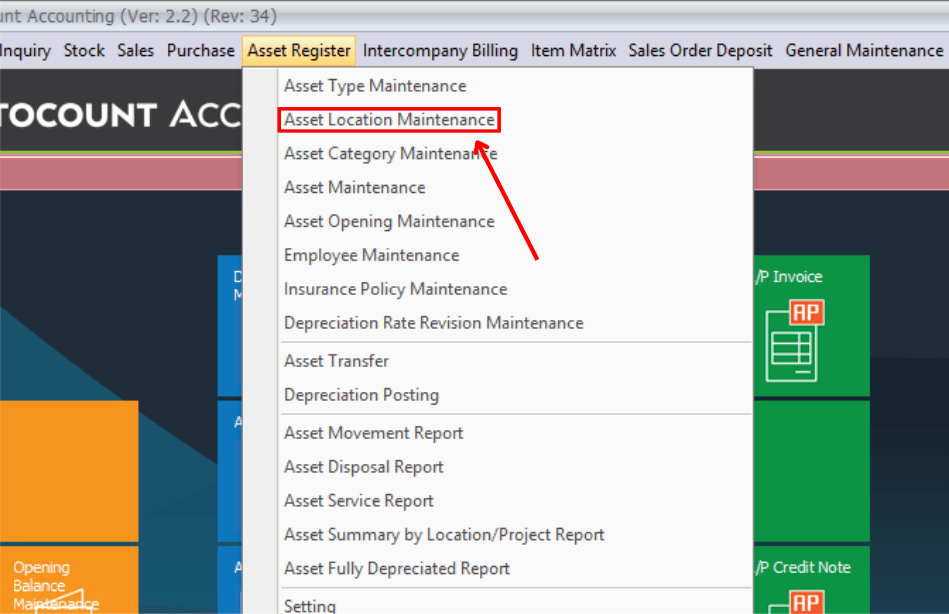
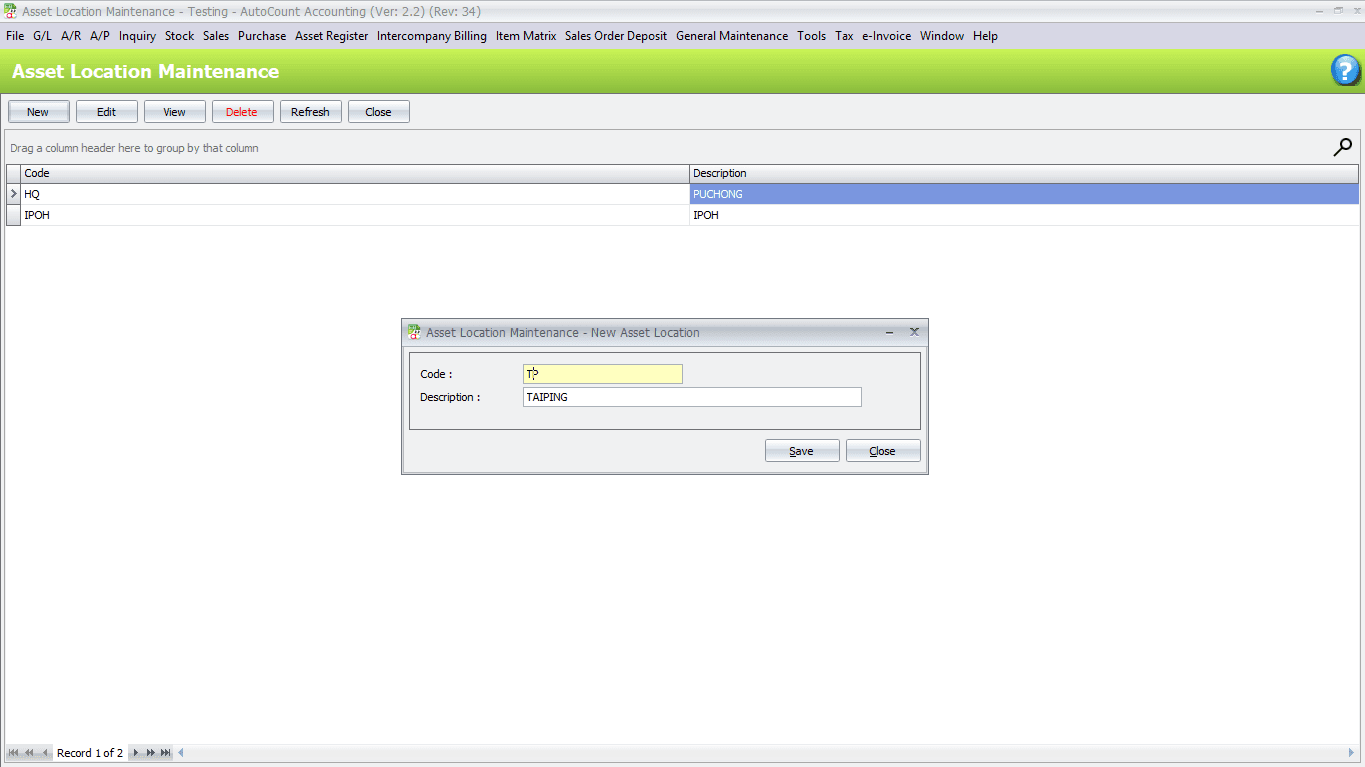
Click Asset Register → Asset Location Maintenance
Click "New" button.
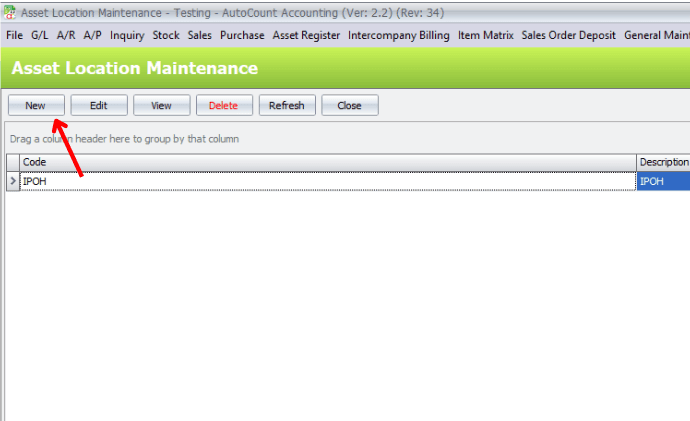
Fill in the code and the description of the new asset location.
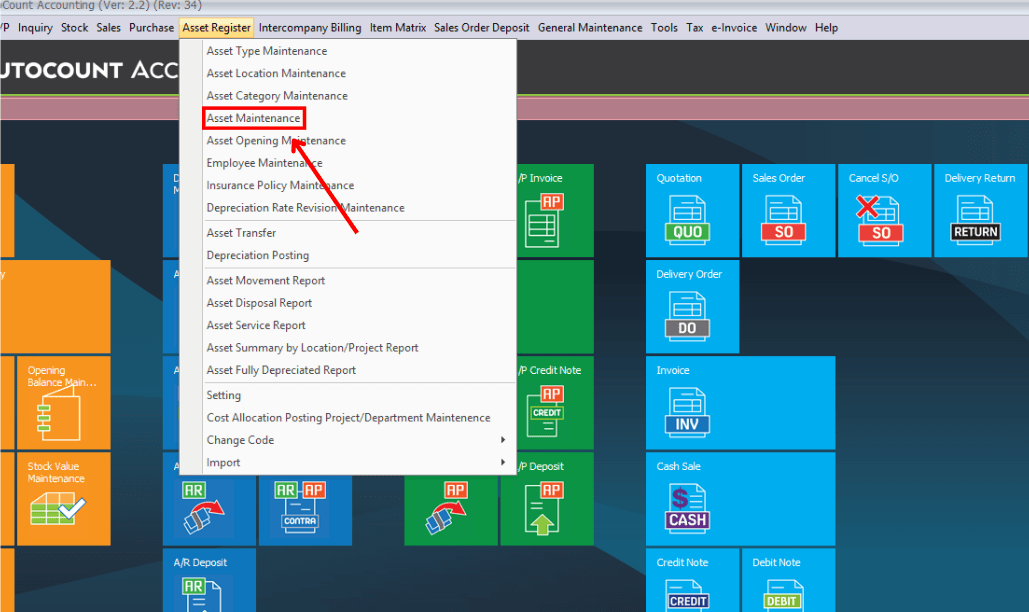
Click Asset Register → Asset Maintenance
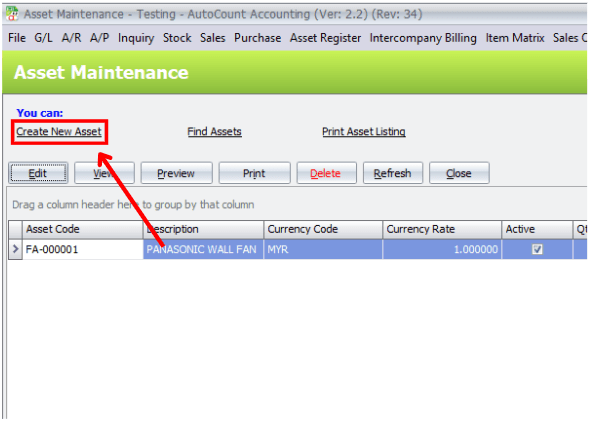
Click "Create New Asset" button.
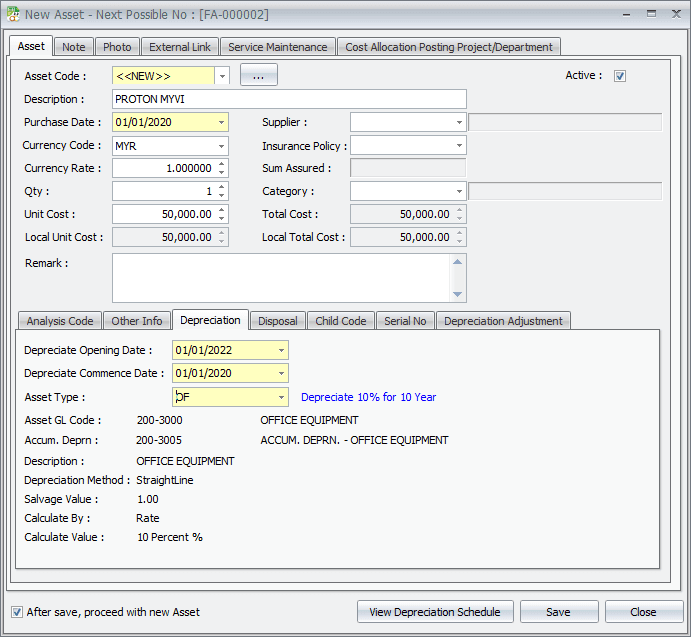
Fill in the asset details in the form.
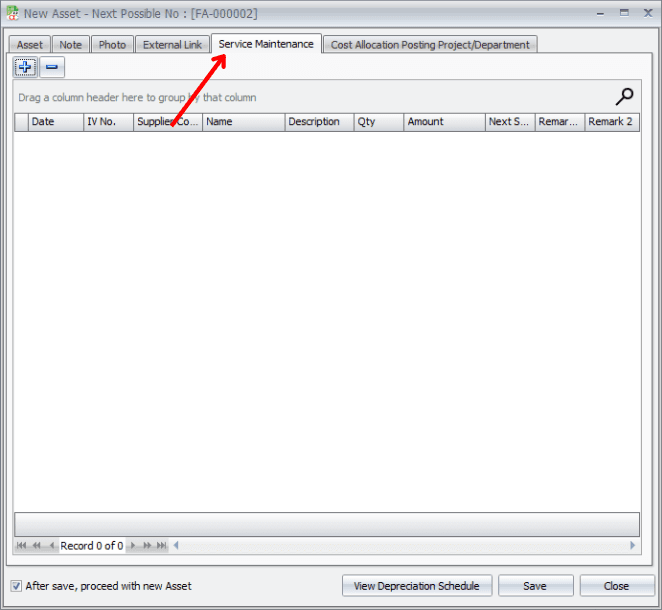
The Service Maintenance function helps you record and manage the servicing schedule of fixed assets. You can set the next service date and keep a history of all maintenance activities. It also works with reminder settings to ensure servicing is done on time and assets are properly maintained.
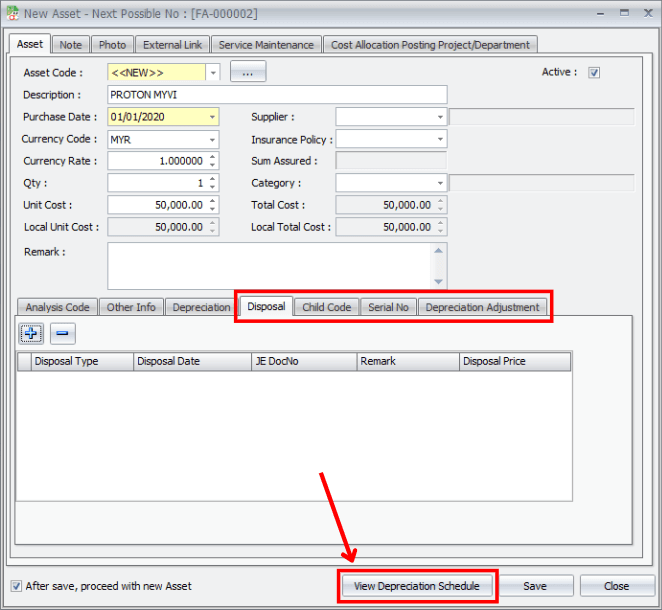
Other functions available in the Fixed Asset module include disposal, child code, serial no and depreciation adjustment.
Then, click "View Depreciation Schedule" button.
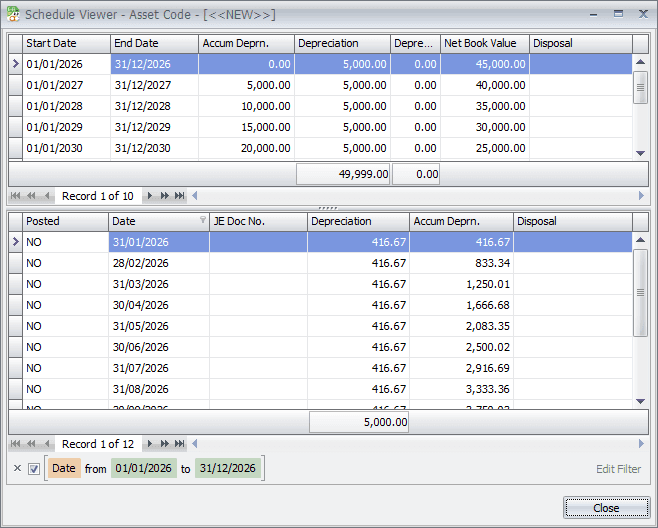
The View Depreciation Schedule shows the details such as annual depreciation, accumulated depreciation, and net book value.
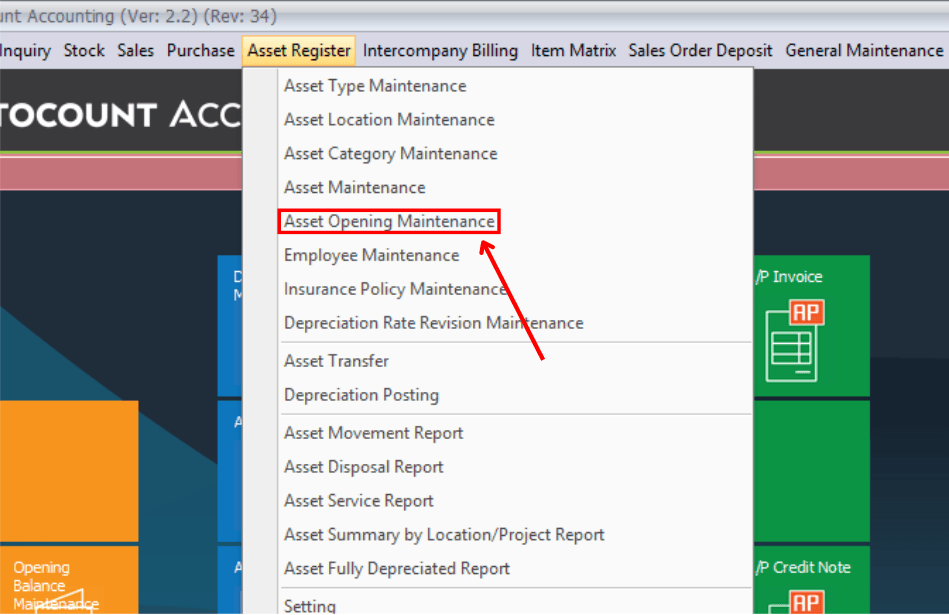
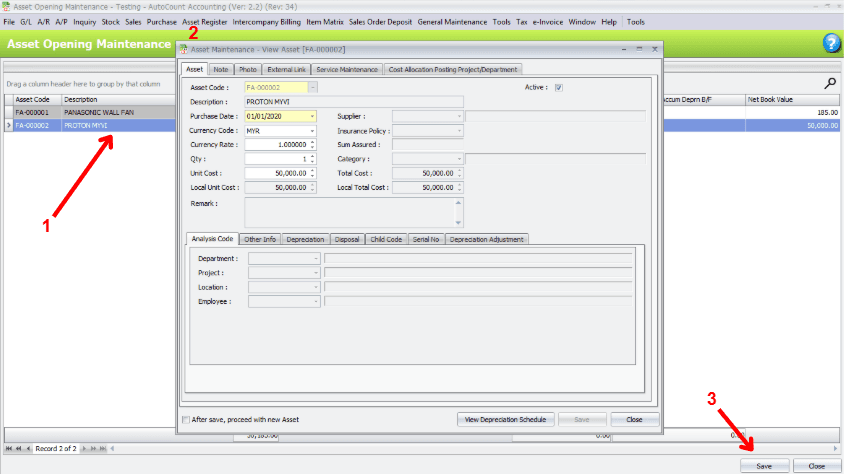
Click Asset Register → Asset Opening Maintenance
1. Click the Asset we want to view.
2. Edit or remain the asset details.
3. Close the tab and click "Save" button at bottom.
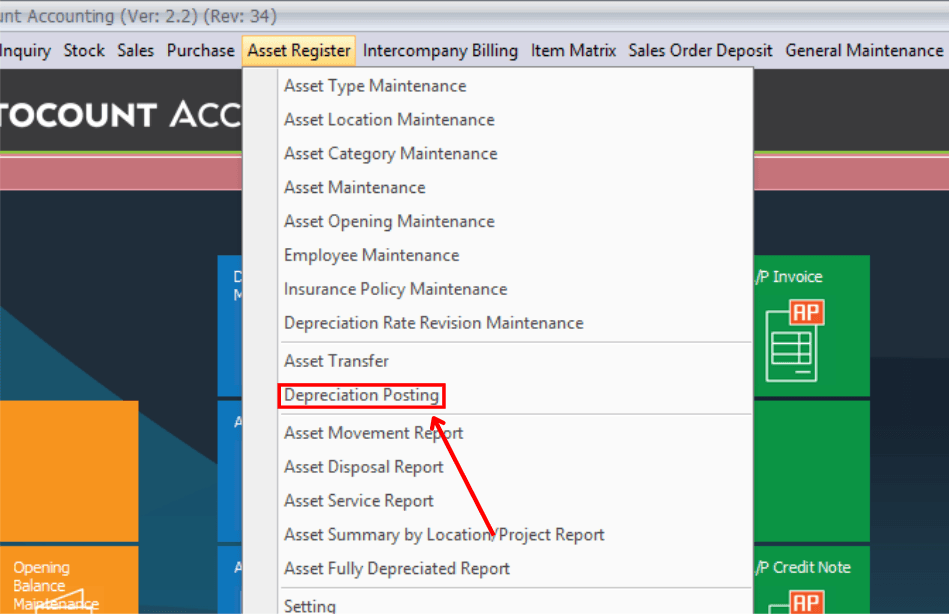
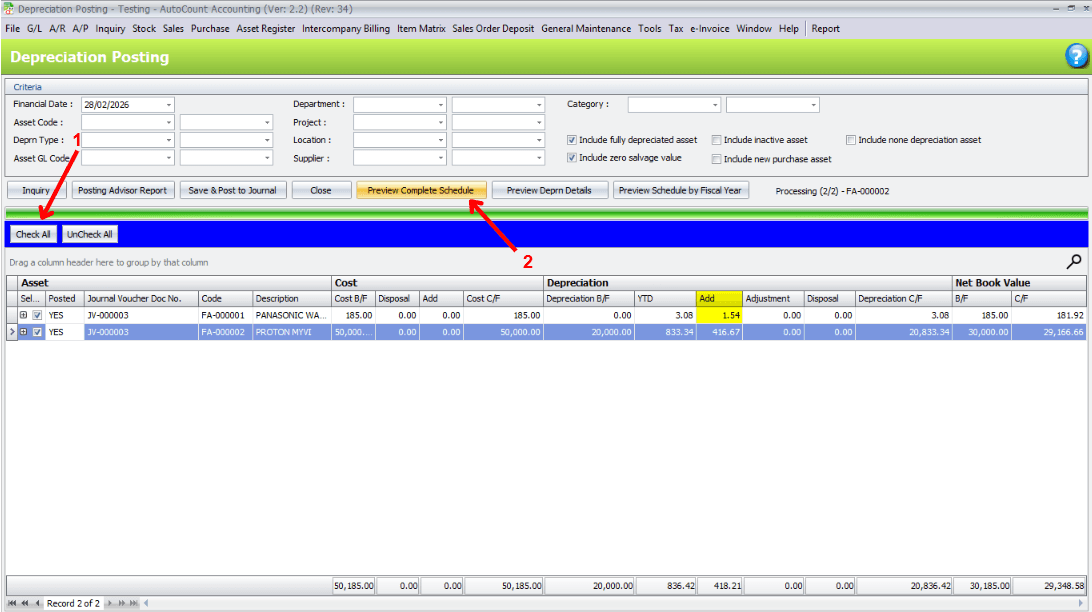
Click Asset Register → Depreciation Posting
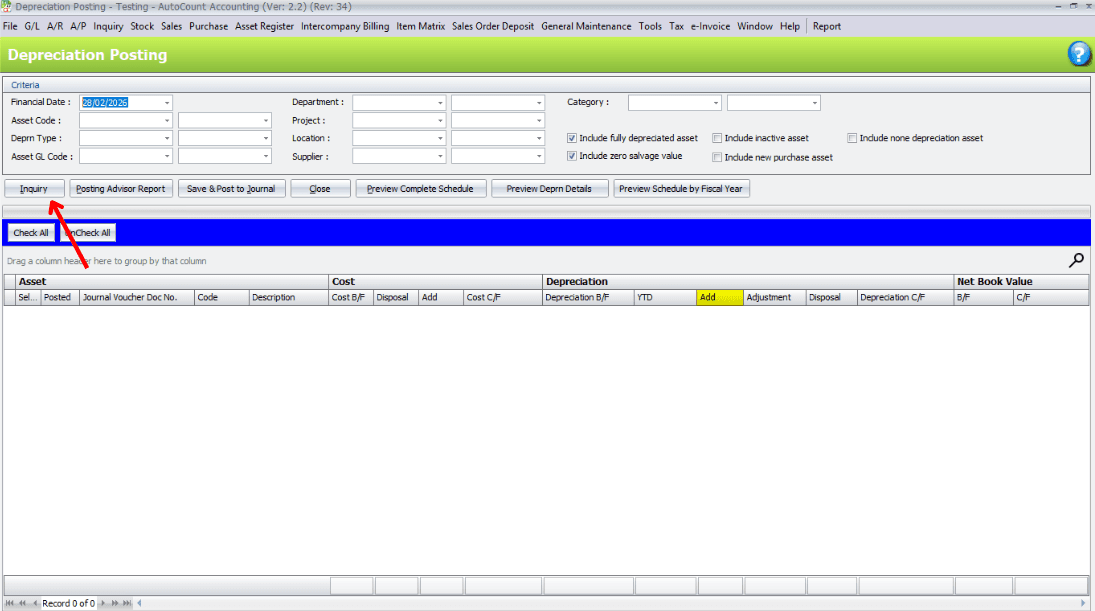
Click the "Inquiry" button to show all the assets.
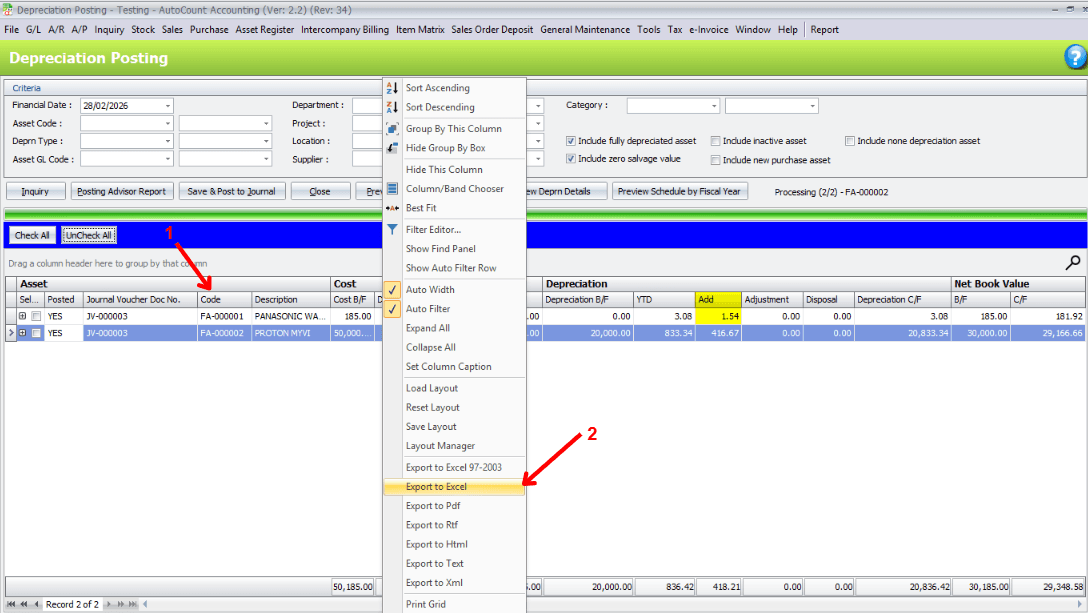
Right click any column header → Export to Excel
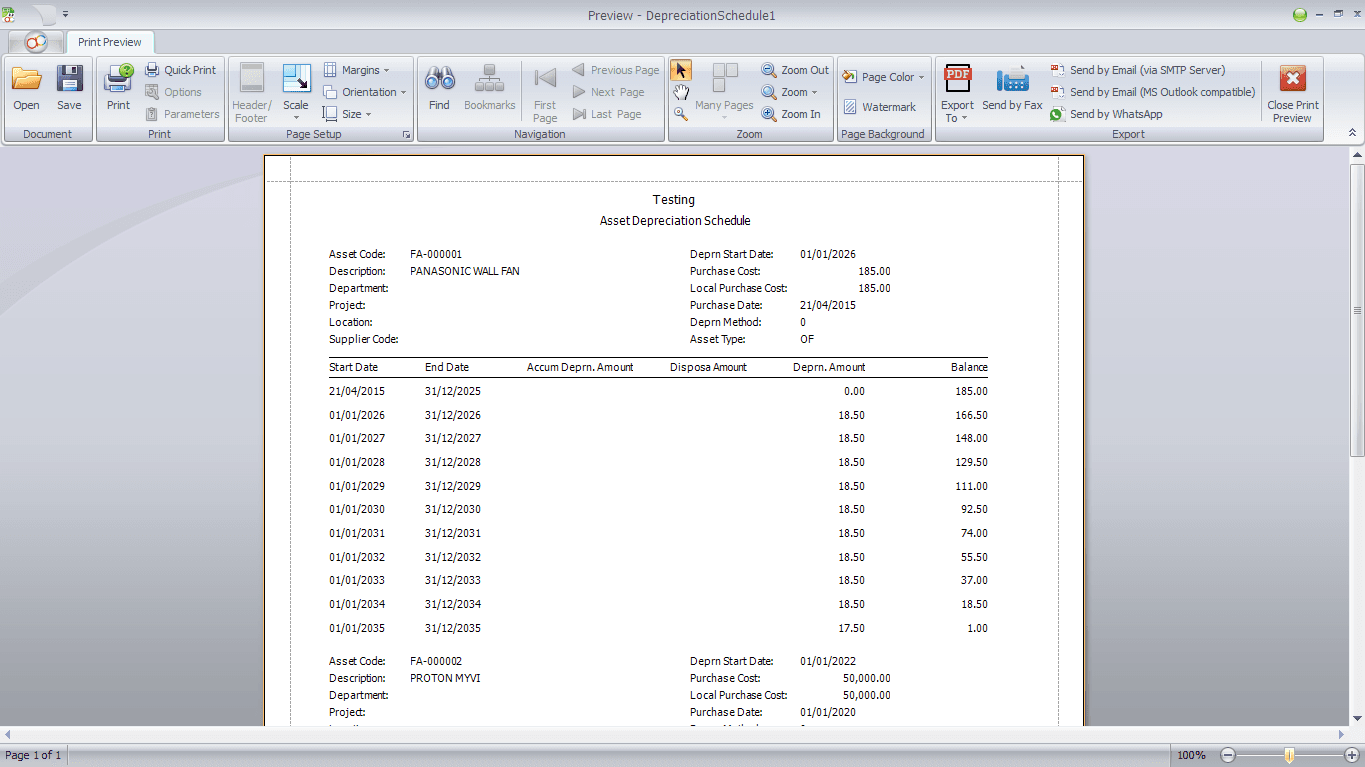
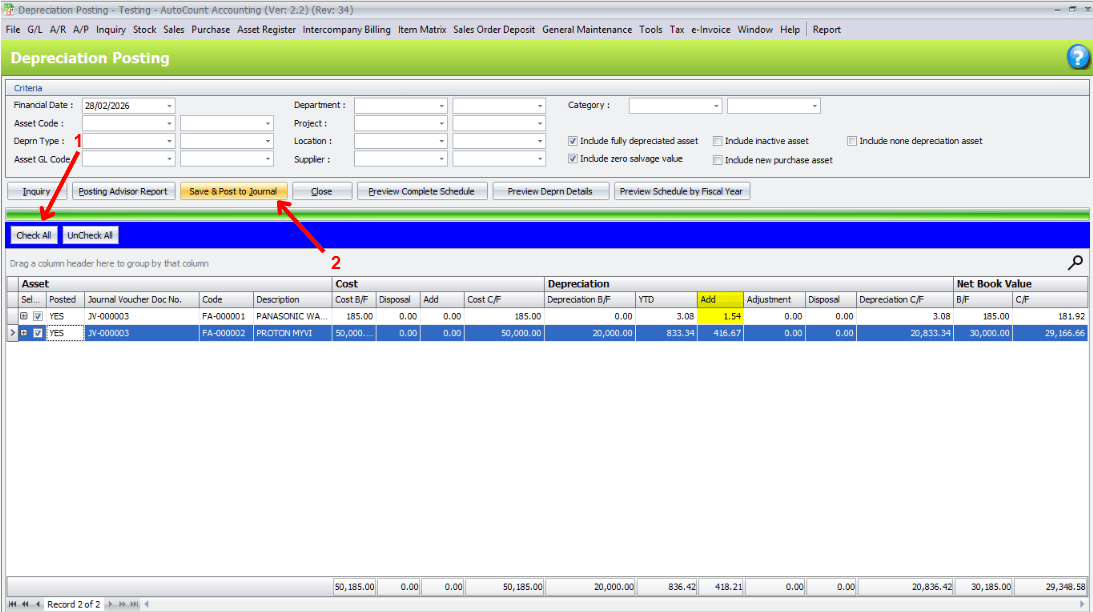
Click the "Check All" button, then click "Preview Complete Schedule" button.
Preview the Schedule Report.
Click "Post to Journal" button.
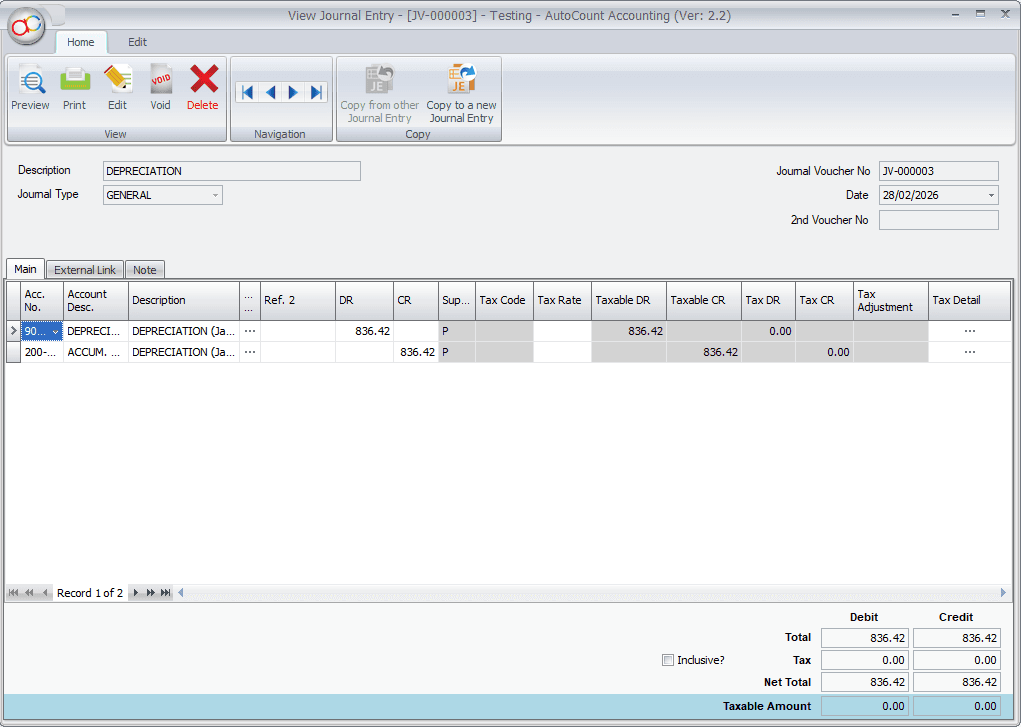
View the journal entry created in the previous step.