Main Page → Aging by Project
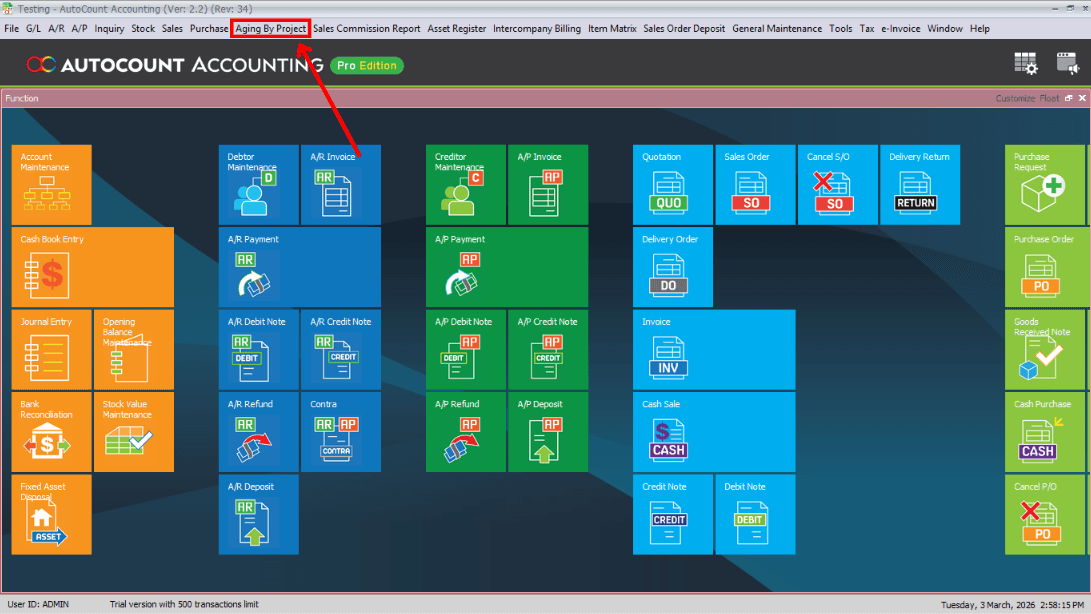
After installing the plug-in, re-open Autocount Accounting; you'll see a new button on the tab above.

Function & Features
View outstanding Accounts Receivable grouped by project code.
After installing the plug-in, re-open Autocount Accounting; you'll see a new button on the tab above.
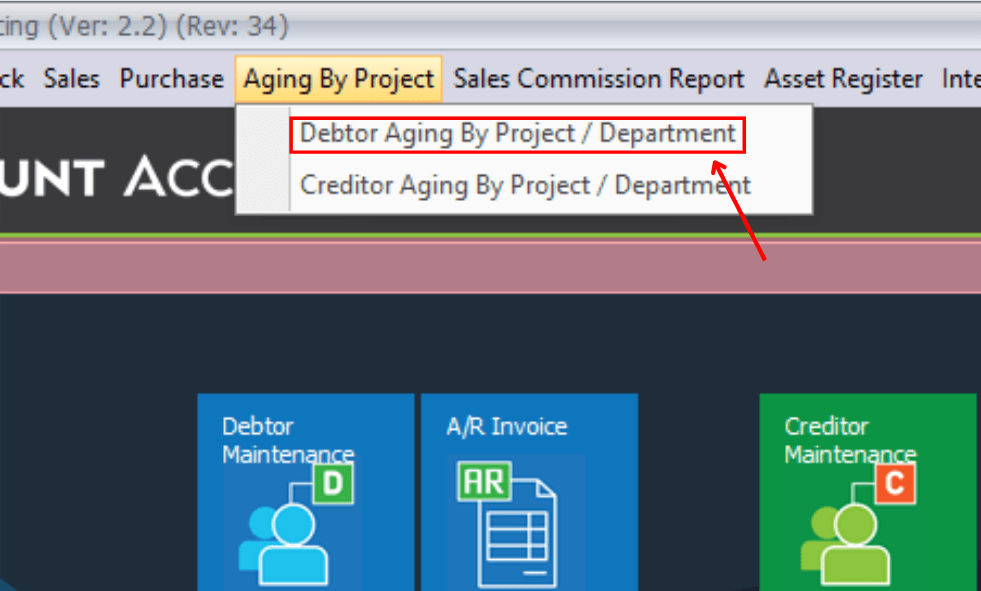
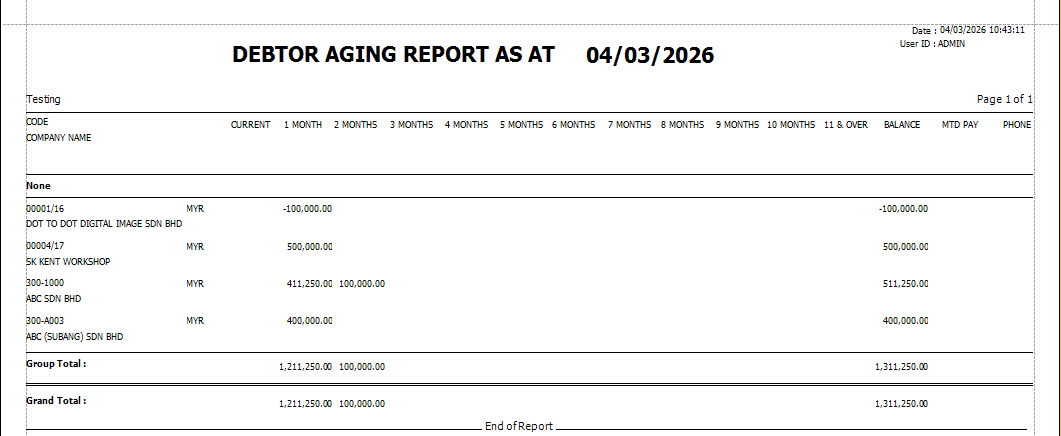
Select the debtor aging report filtered by project or department to analyze outstanding balances.
Use the Inquiry to search, filter and drill down into invoice and transaction details by project.
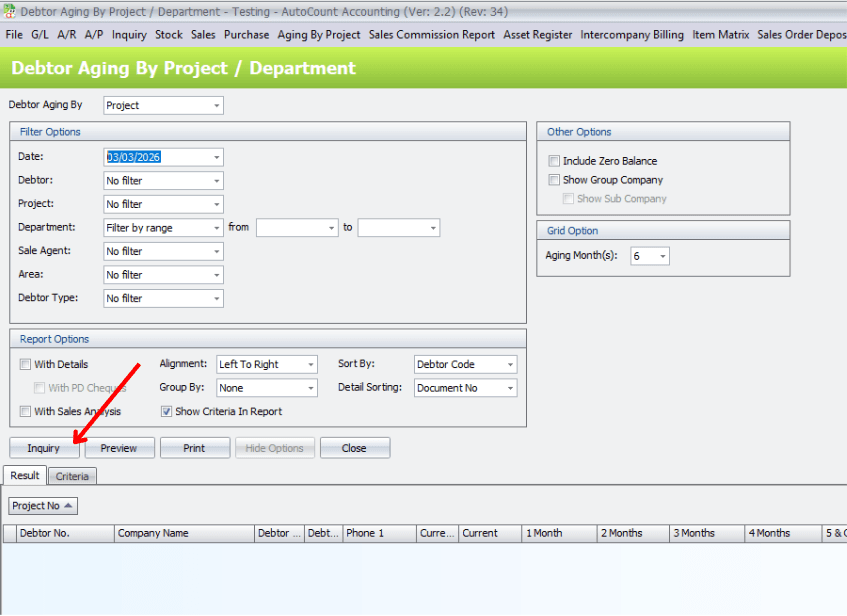
Click the "+" button to add a new filter or report configuration for the aging view.
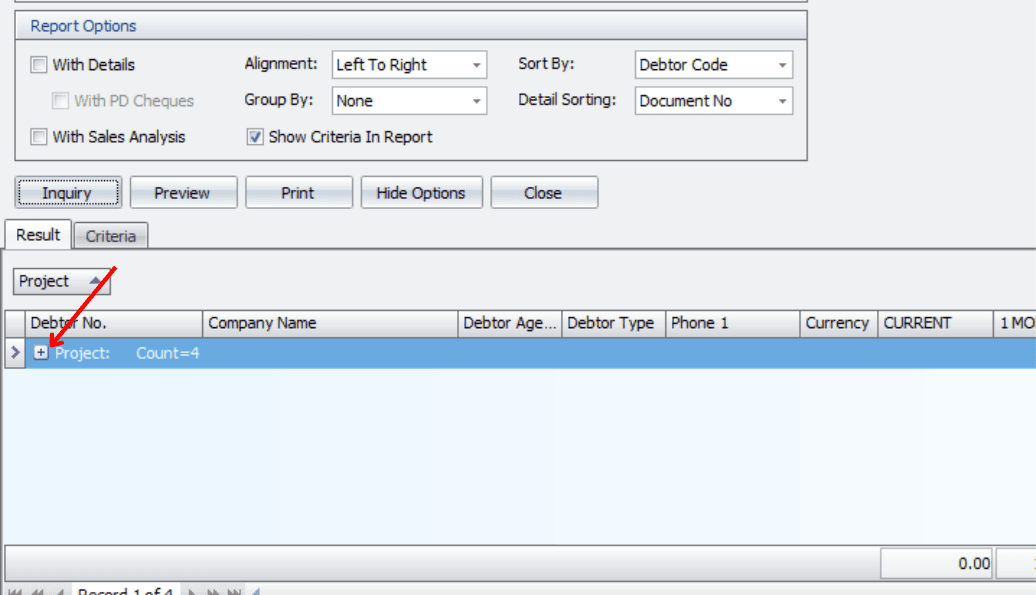
1. Use the second "+" to add additional criteria such as project codes or date ranges.
2. Right click on the column header.
3. Choose "Column Chooser" from the context menu.
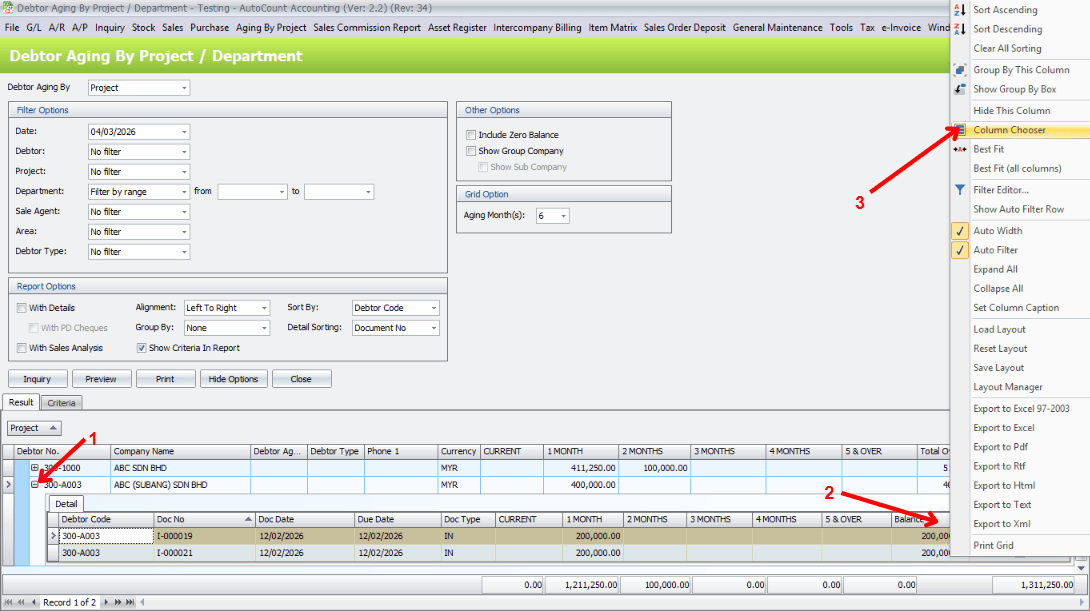
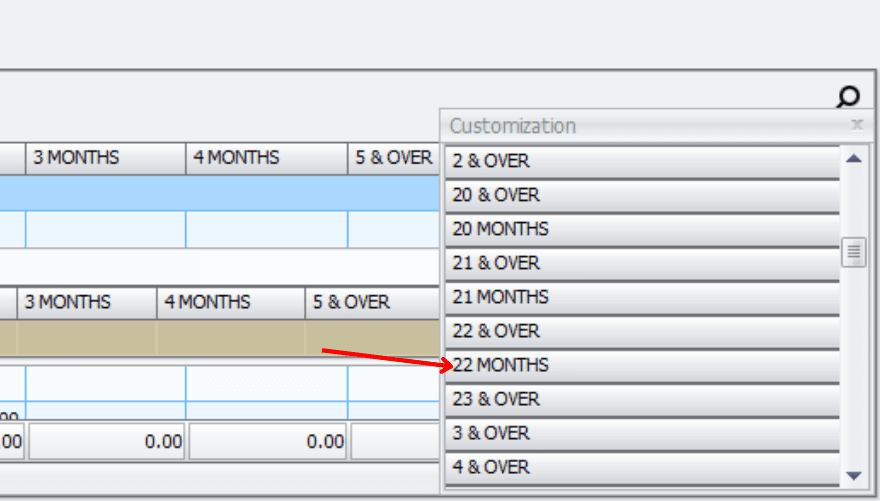
User can explore up till 24 months of aging through column chooser.
Preview the aging report before printing or exporting.
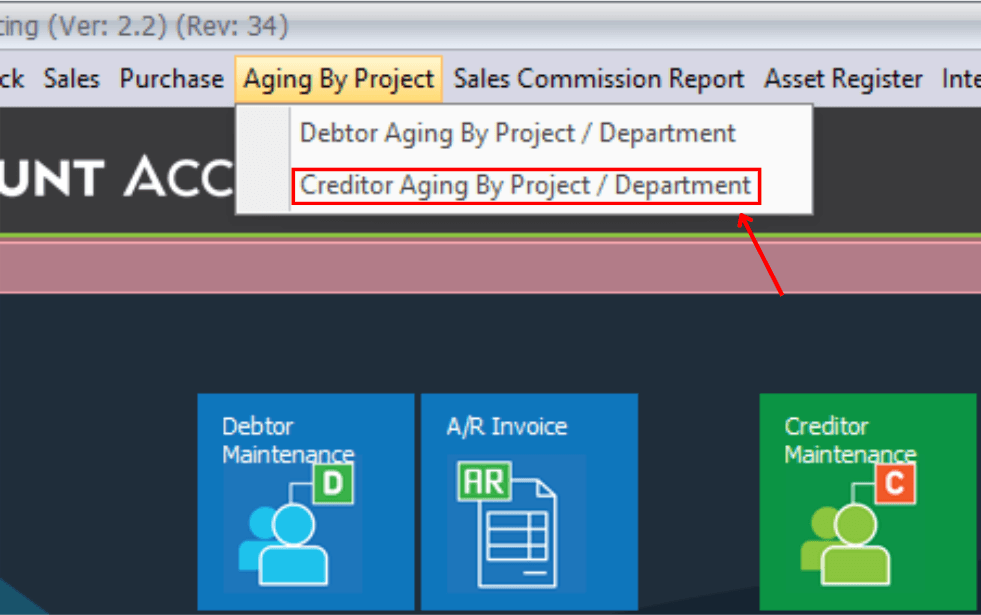
The Creditor Aging by Project / Department also use the same steps with Debtor Aging.