Main Page → Sales Order Deposit
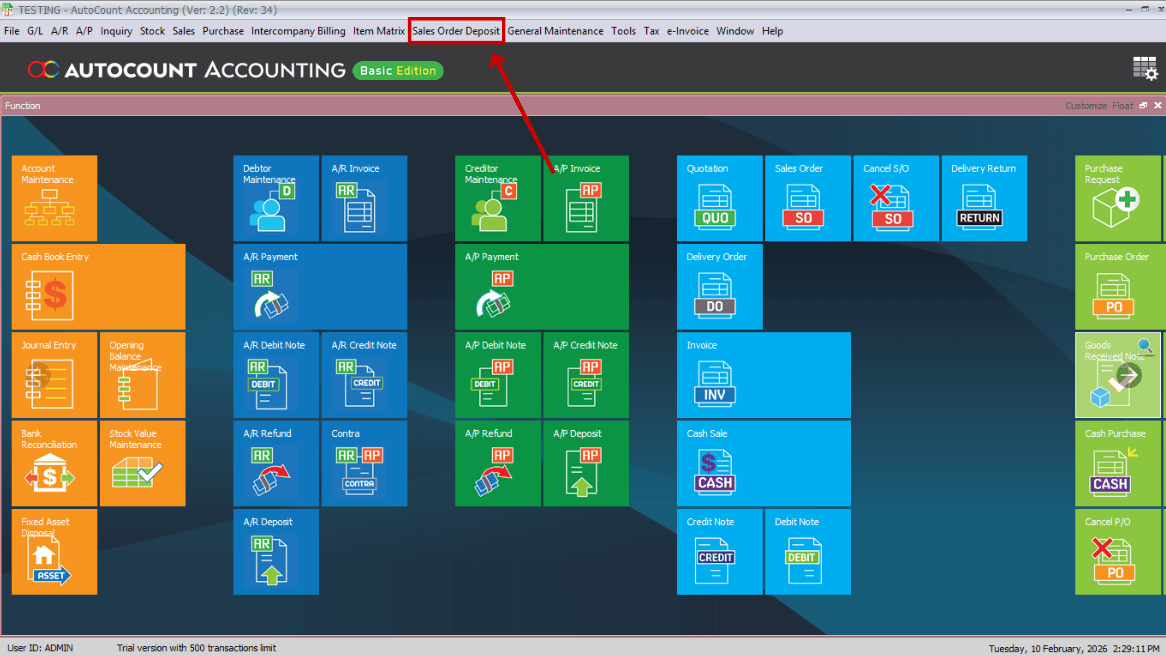
After installing the plug-in, re-open Autocount Accounting; you'll see a new button on the tab above.

Function & Features
After installing the plug-in, re-open Autocount Accounting; you'll see a new button on the tab above.
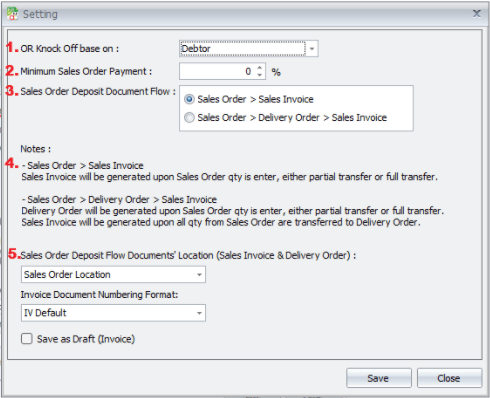
Used when the system has multiple locations. When converting SO → DO / Invoice, the system needs to know where to put the document. It will be based on:
First, create a new sales order.
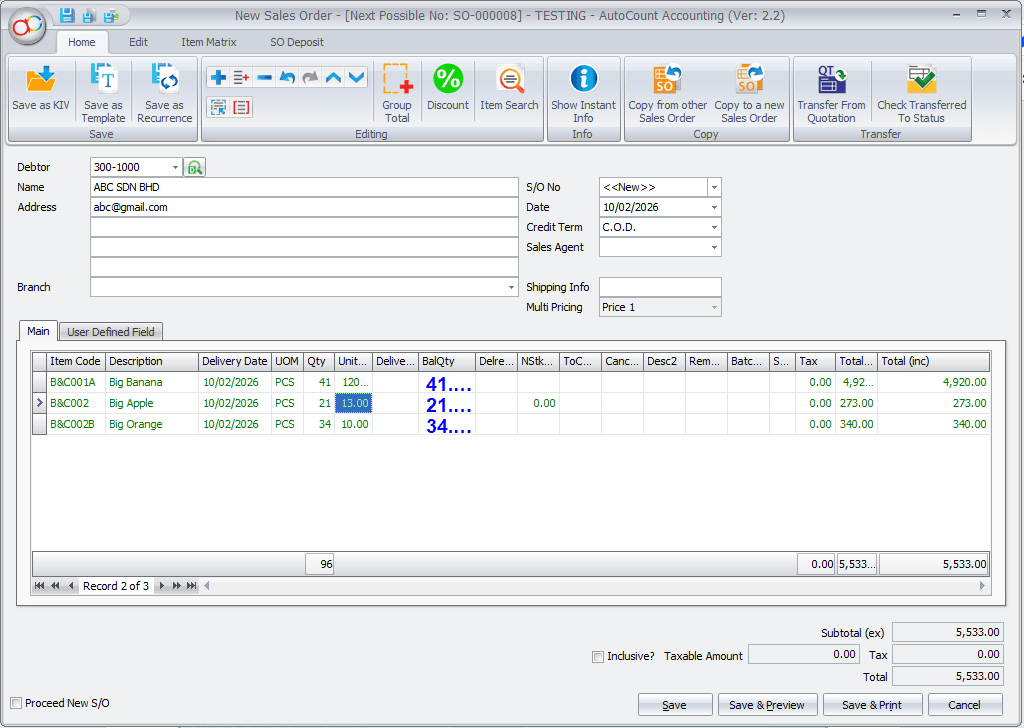
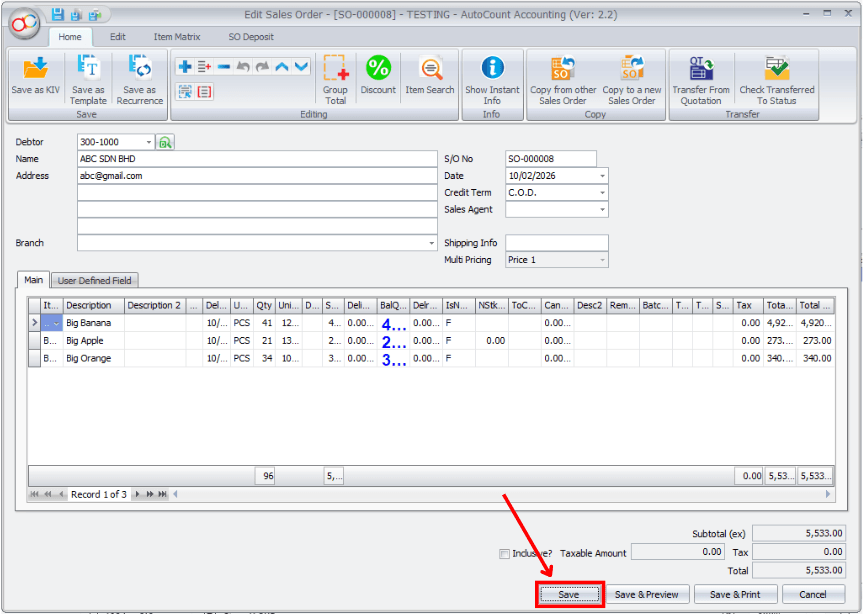
Add the items, then click "Save".
System will prompt ask to receive payment / direct Save the document.
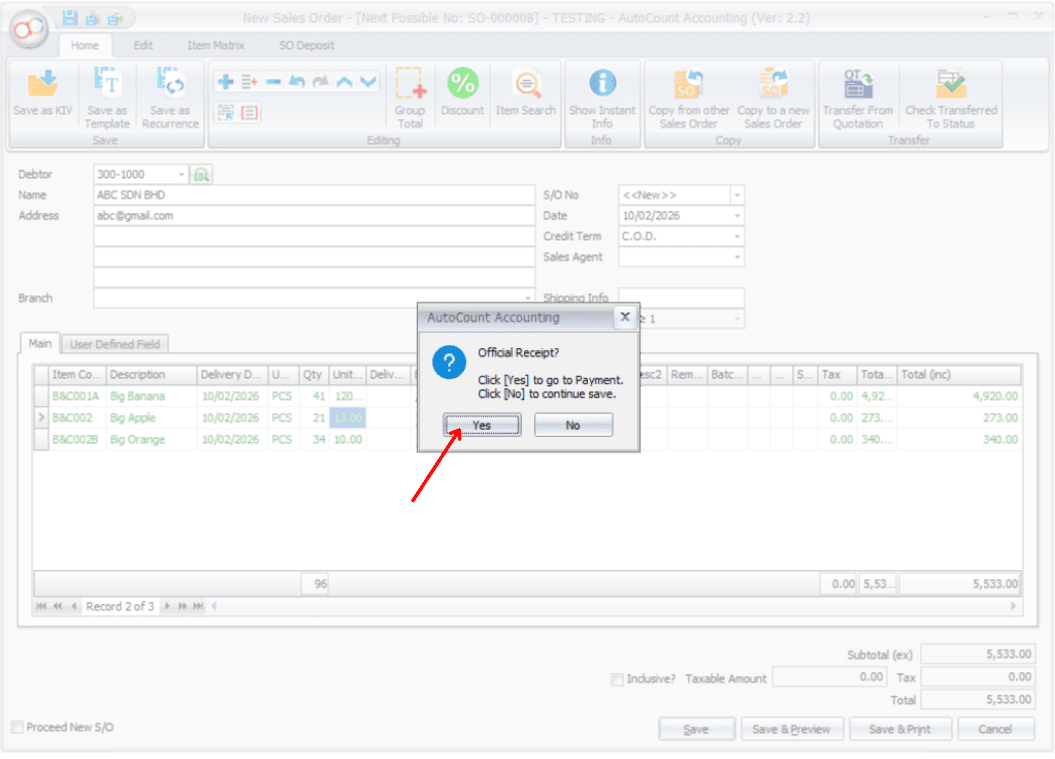
If click "Yes", system will auto prompt to Payment Tab and record the payment received here.
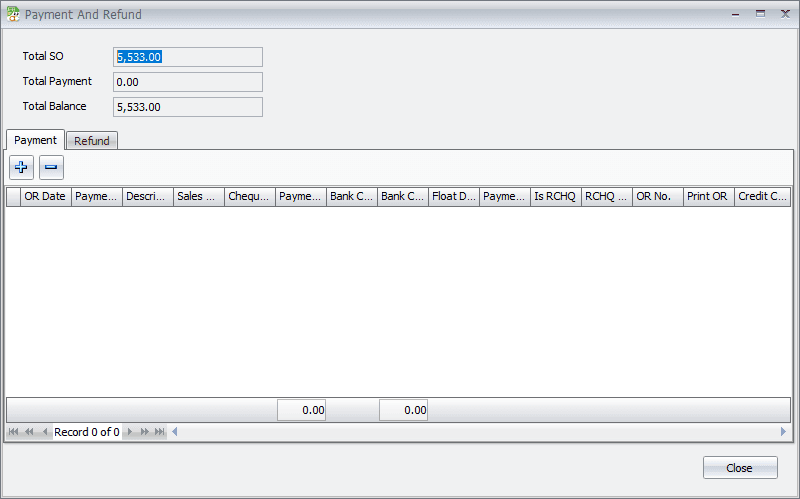
Fill in the OR date, Payment Method, Payment Amount, cheque / credit card number, and other required fields.
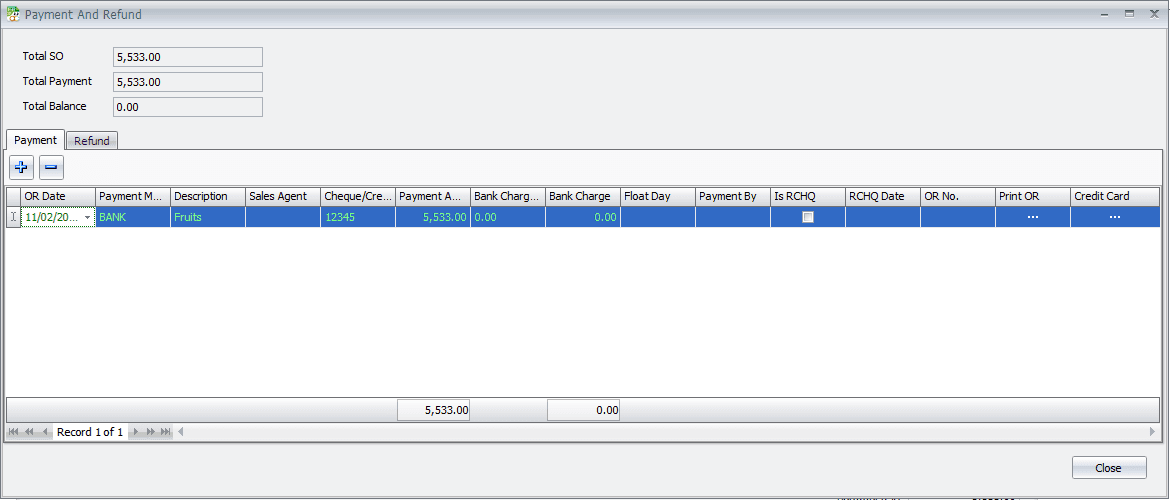
After done, click the "Close" button and back to Sales Order Tab
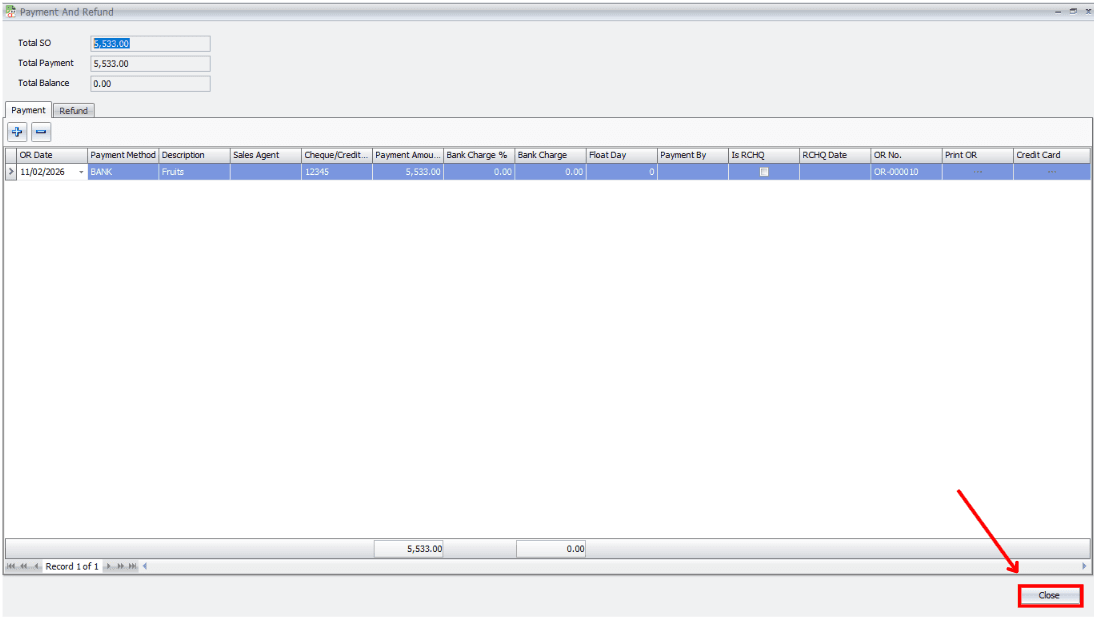
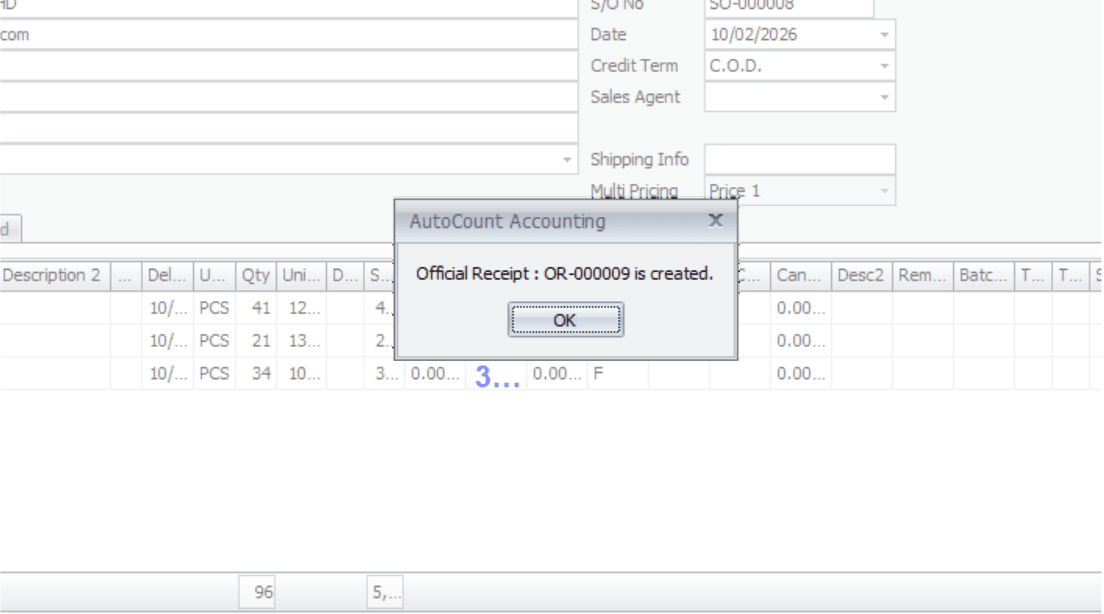
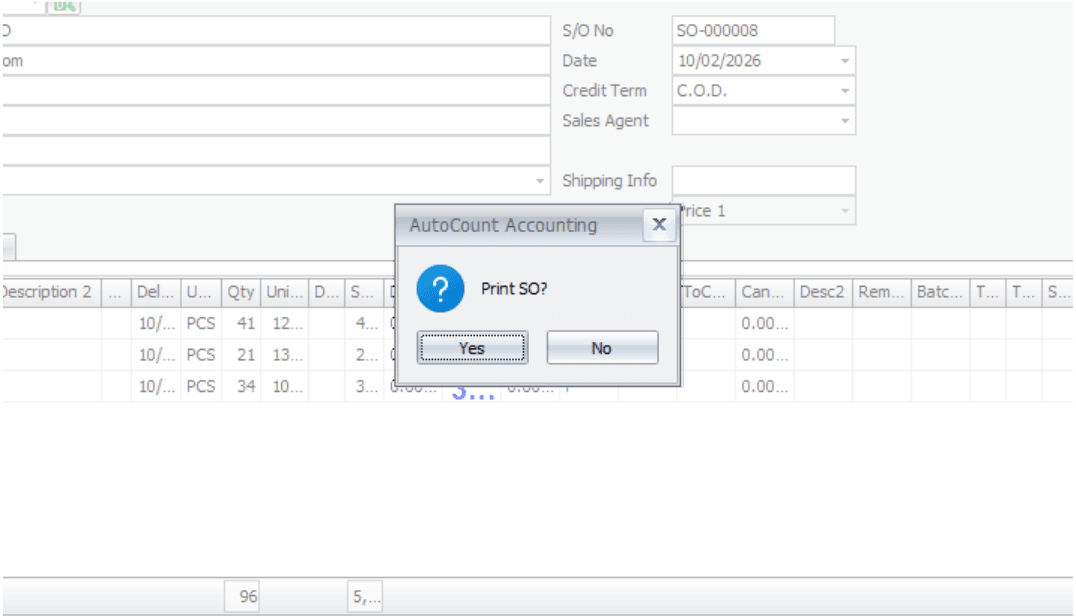
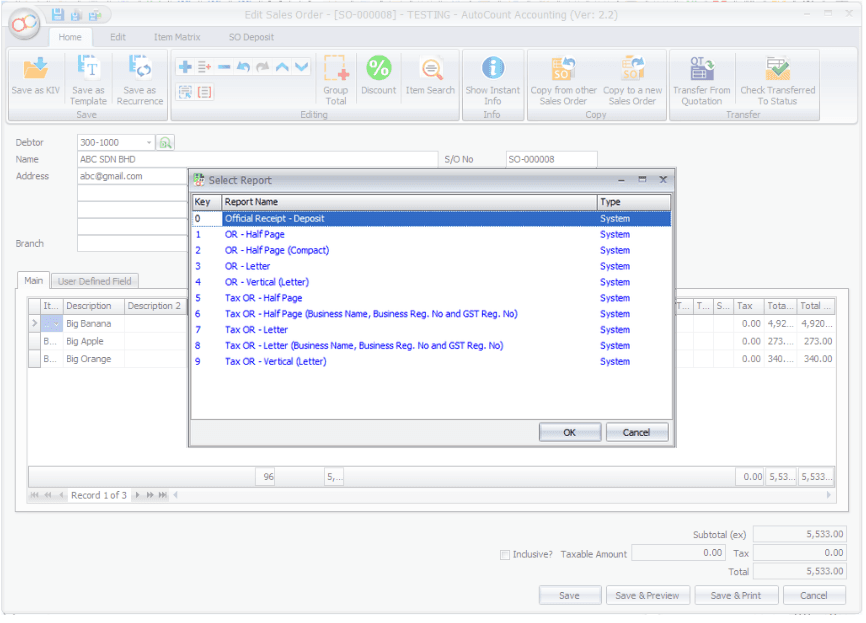
Click "Save". An OR will be generated and system will prompt to print SO and OR.
Official Receipt: OR-000011 is created.
Prompt to print SO
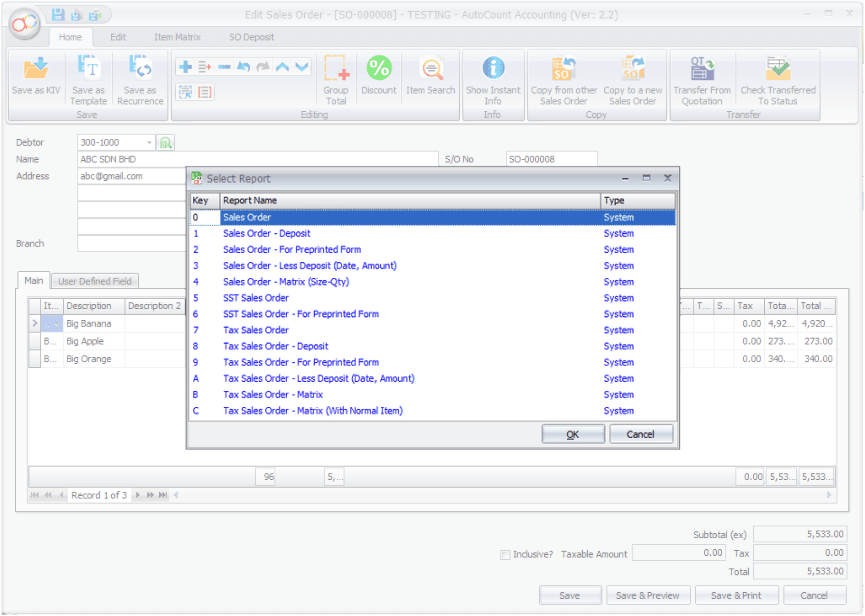
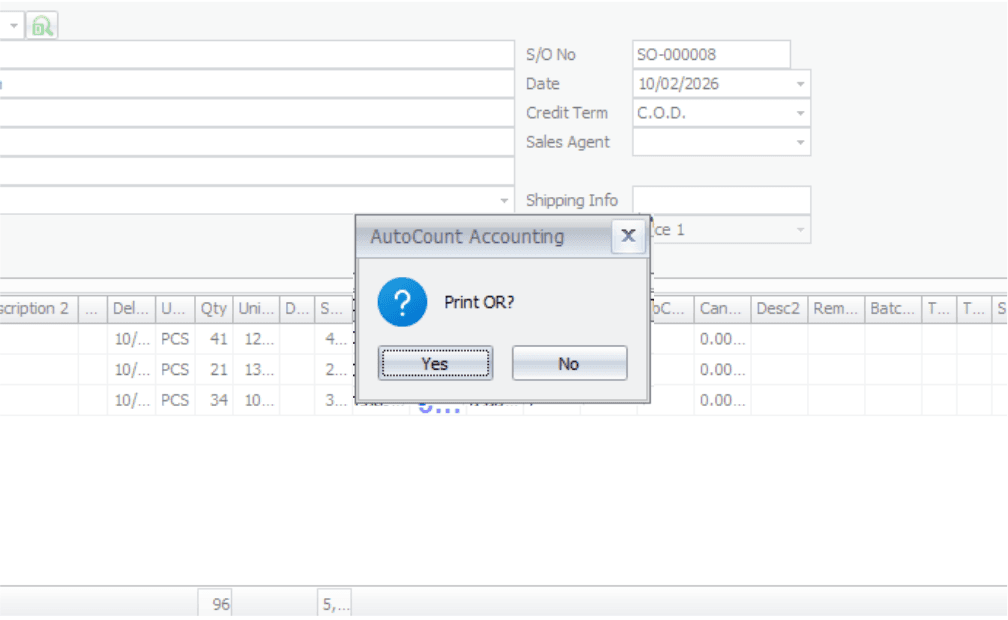
Prompt to print OR
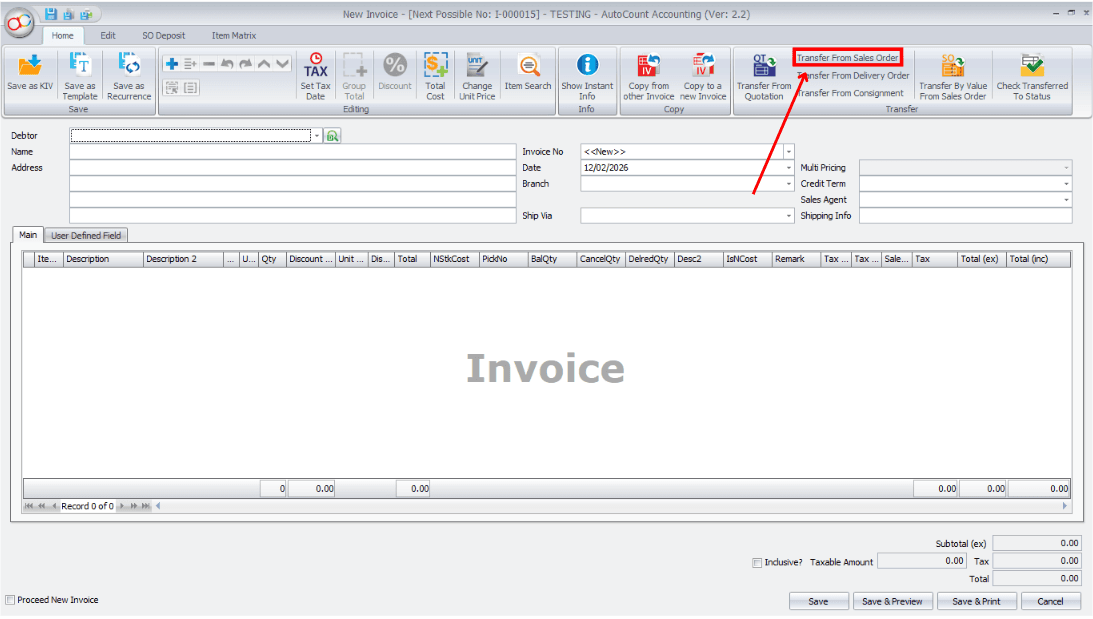
When stock is ready, transfer into Sales Invoice and generate invoice from SO.
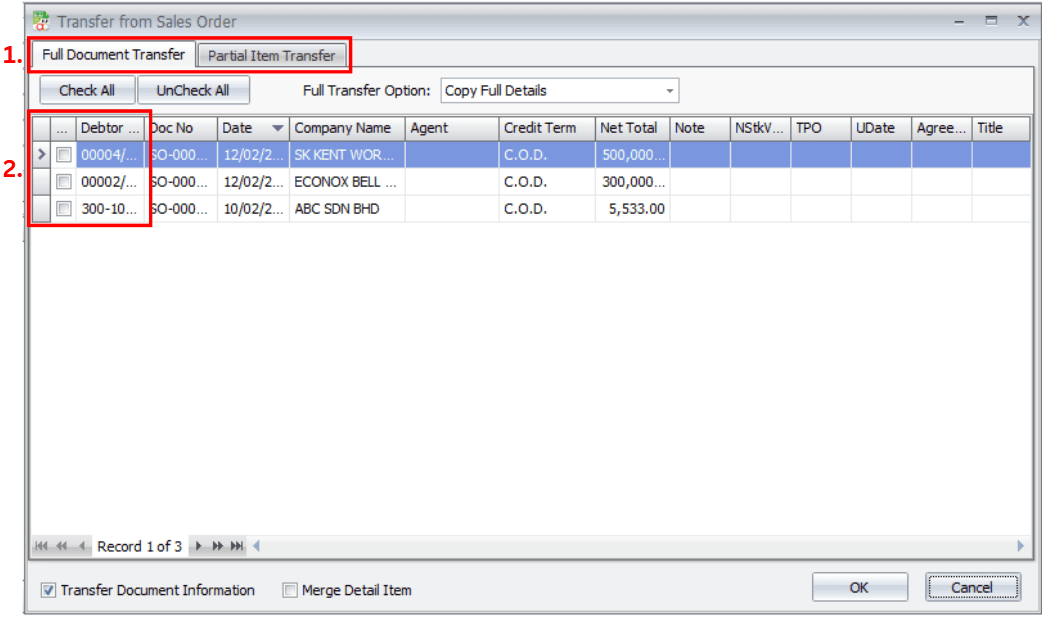
Choose Full Document Transfer / Partial Item Transfer, and select the document you want to transfer.
After transfer, click "Save".
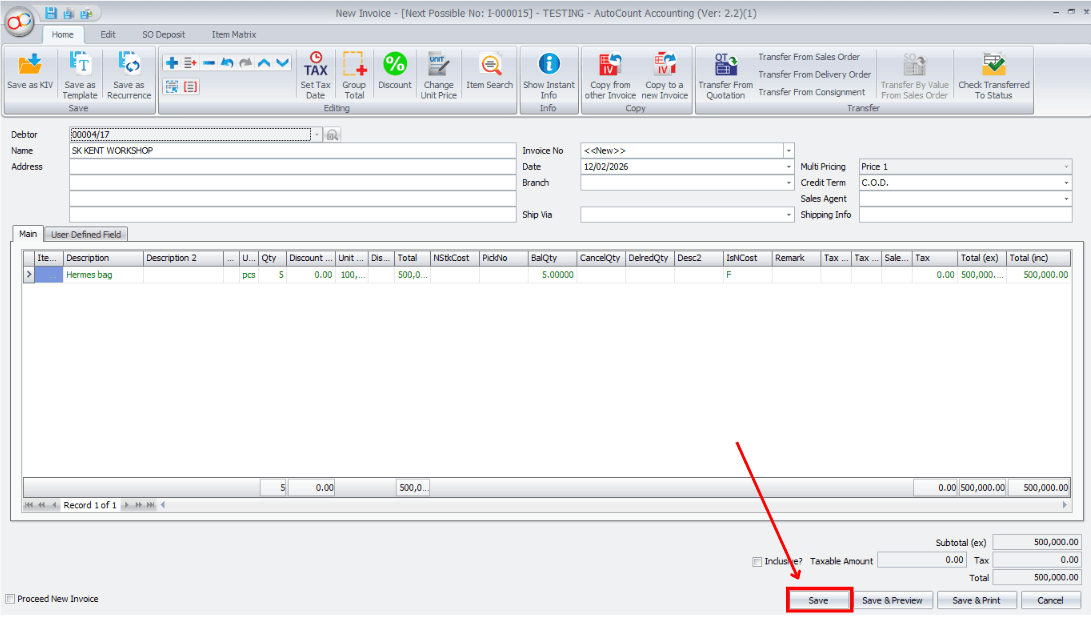
System will automatically knock off the deposit amount received previously.
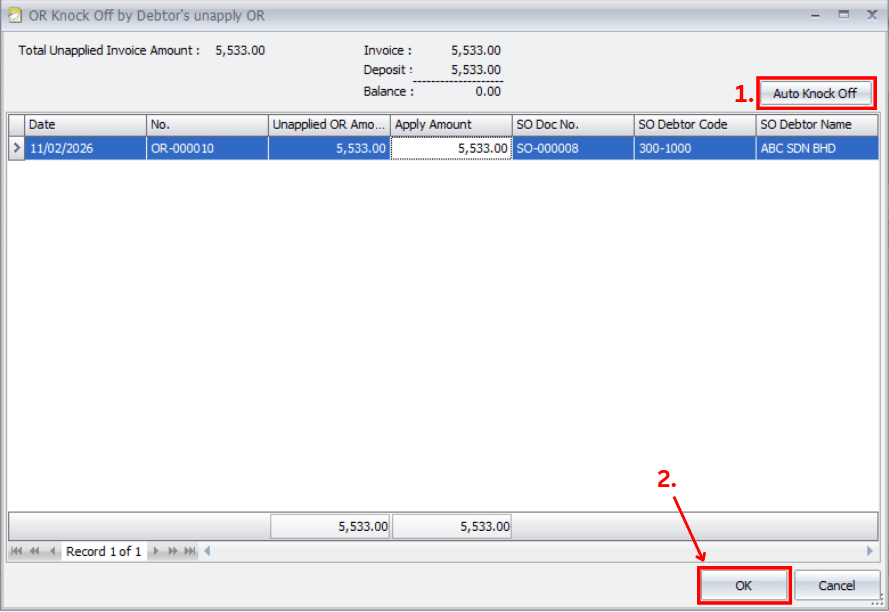
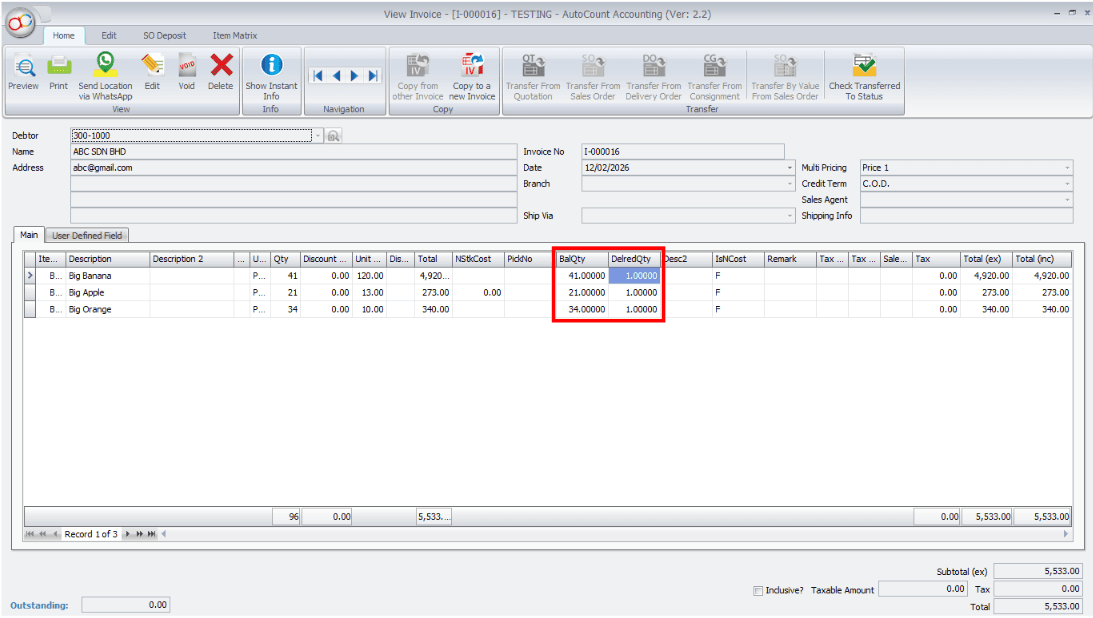
Then, the stock quantity will be updated in SO (DelredQty column locked).