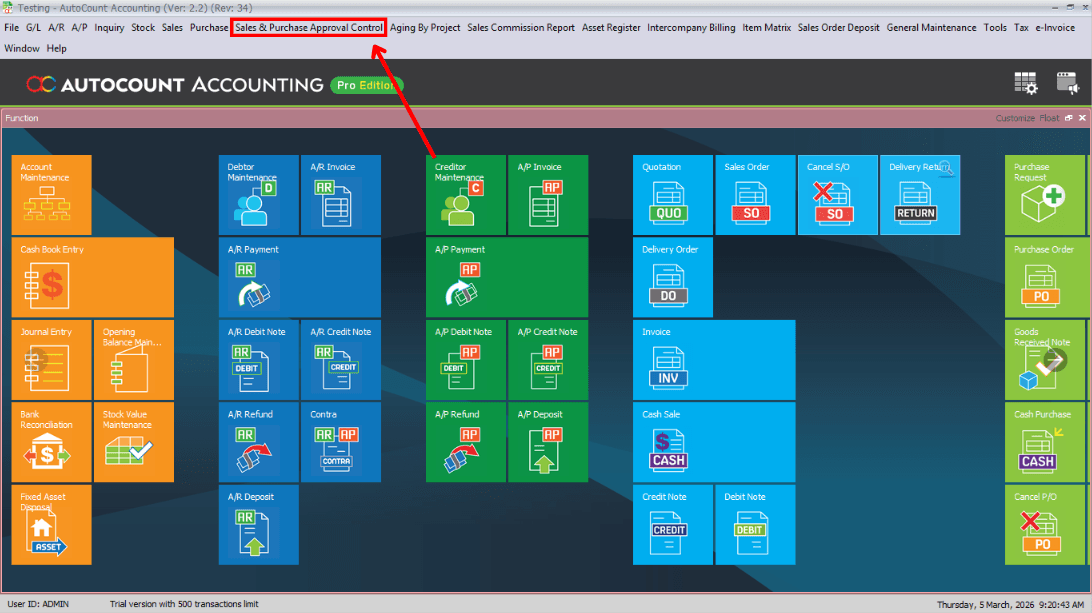
Main page → Sales & Purchase Approval Control
From the AutoCount main page, navigate to the Sales & Purchase Approval Control plug-in.

Function & Features
Introduces an approval workflow for key sales and purchase documents (Sales Order, Sales Invoice, Purchase Requisition, Purchase Order). The system can require authorized approval before the transaction proceeds, ensuring review and authorization.
From the AutoCount main page, navigate to the Sales & Purchase Approval Control plug-in.
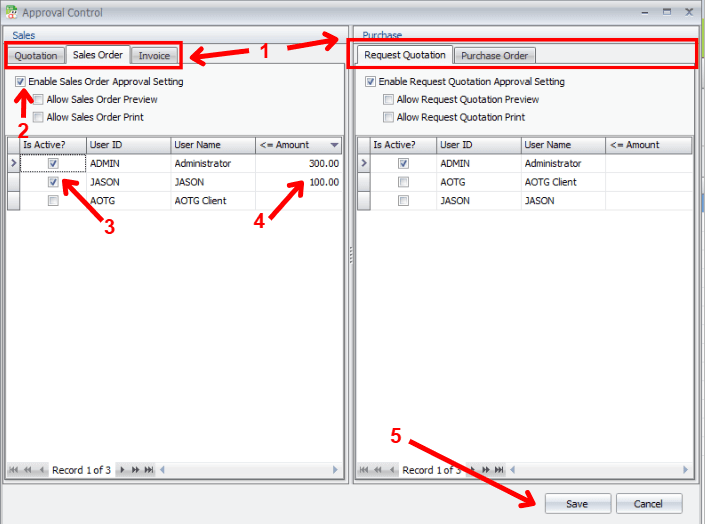
Open the Approval Control section to configure and manage approval workflows.
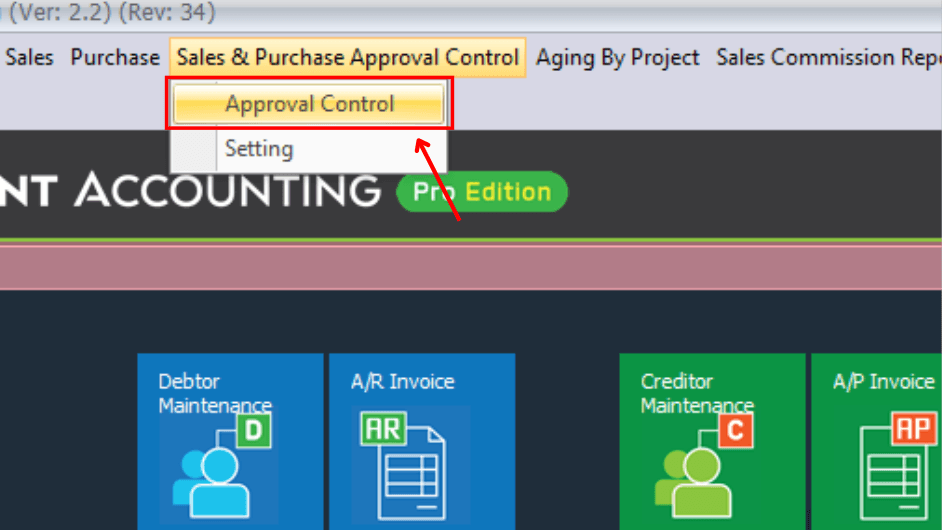
Set up approval rules, define approvers, and configure conditions for triggering approvals.
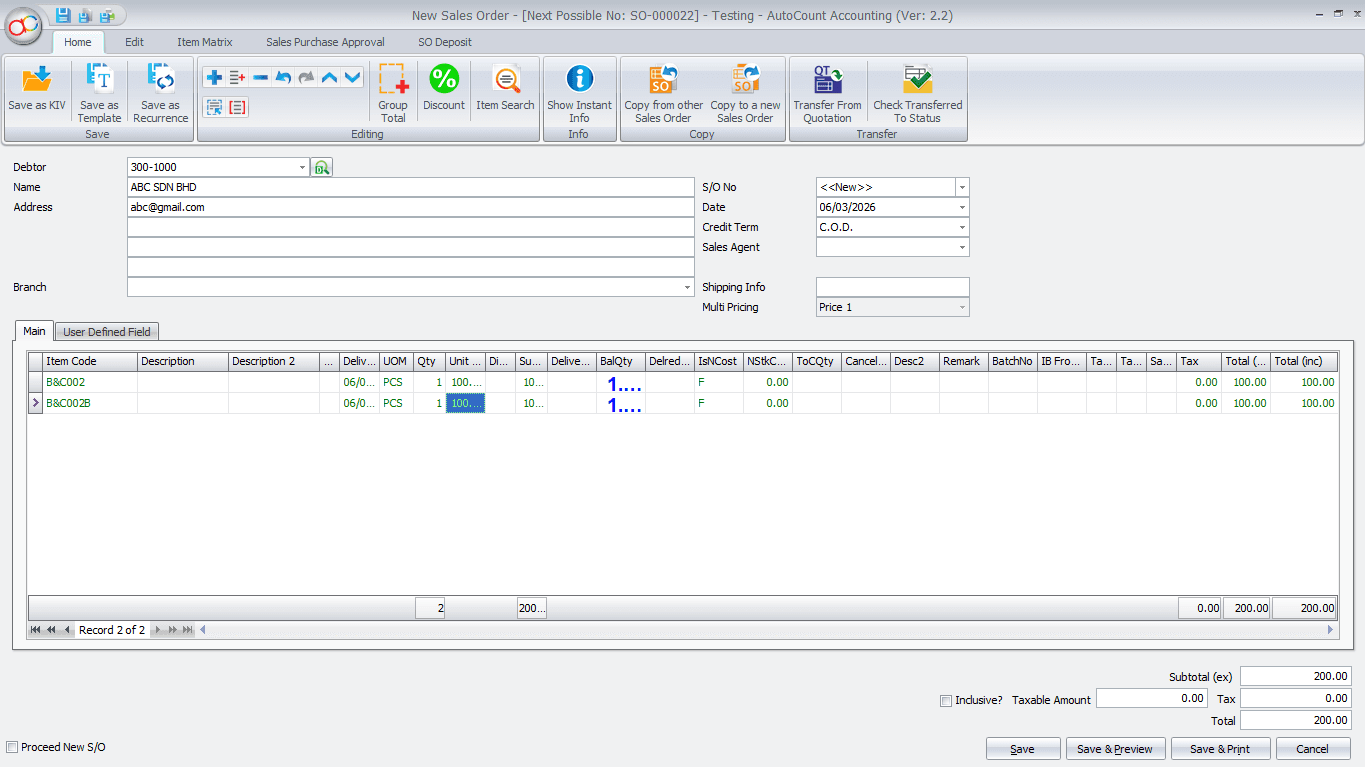
Create a new Sales Order as usual. The system will automatically check if approval is required based on the configured rules.
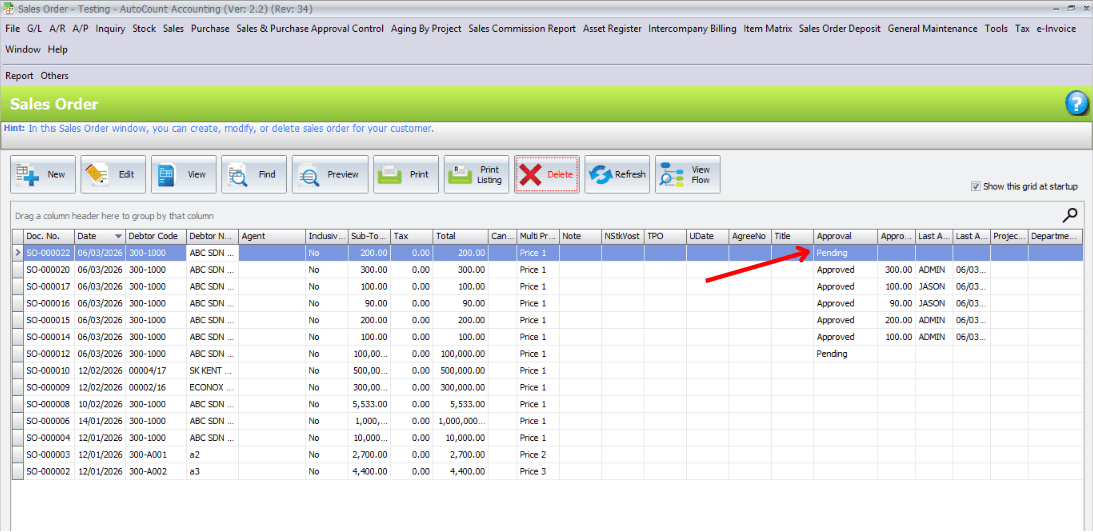
The document now appears in the pending approval list, waiting for the designated approver to review.
Switch to the approver's user account to review and act on pending approval requests.
Open the Sales Order to review the details before approving or rejecting the document.
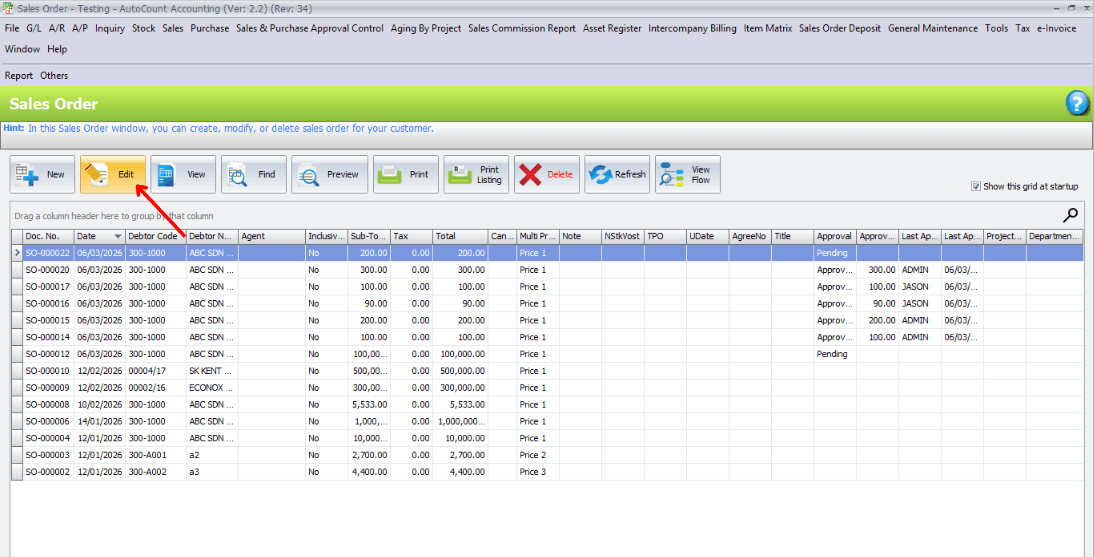
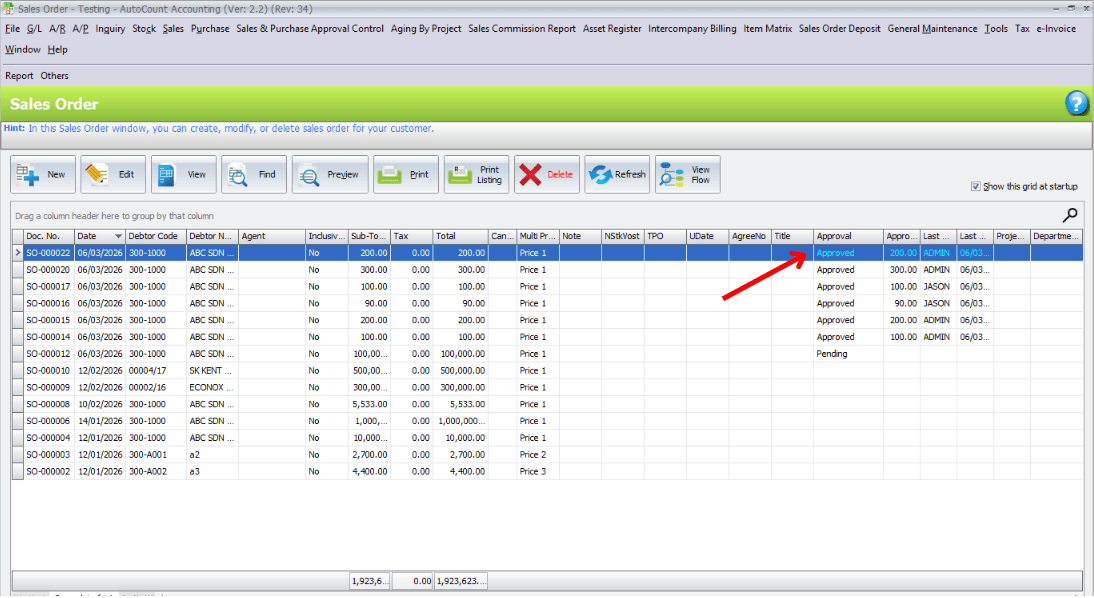
Click Approve to authorize the Sales Order. The approval action and timestamp are recorded for audit purposes.
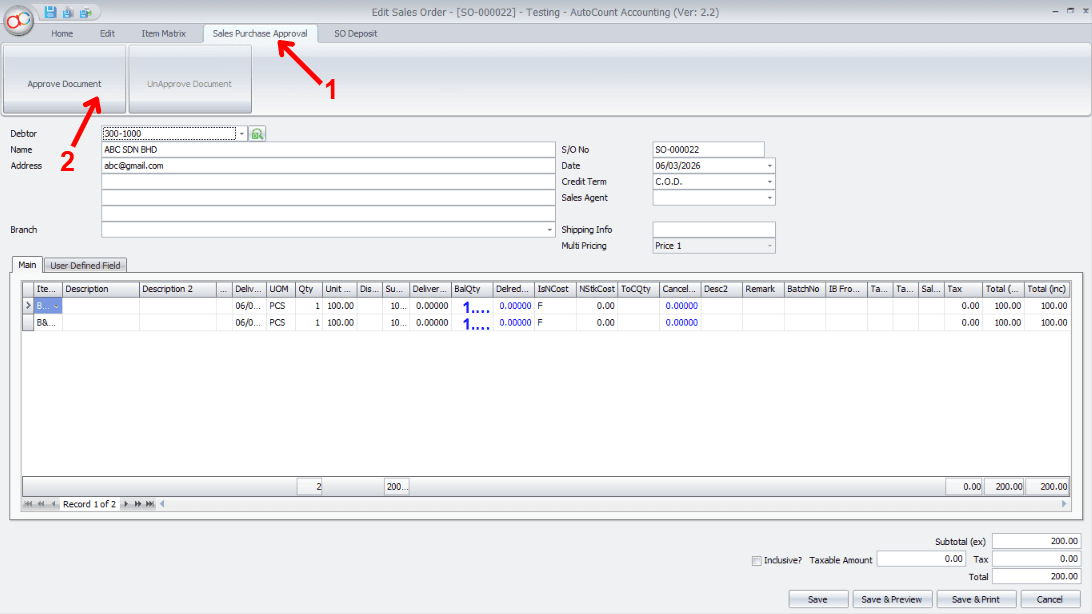
The document status is now updated to Approved and is ready for posting.